New article
Recently updated
Using Audit template QR codes on mobile

Who is this article for?Users completing Audits on mobile.
Audit Management access is required.
Keeping Audit details correct and consistent between records can be difficult when mobile users responsible for carrying out the inspections aren't sure which protocol to select. To help avoid that, each template has a QR code that can be shared with those responsible for completing tasks within. This article shows you how to find the QR code and use it to access the pre-filled template.
1. Accessing QR codes
To access a template code:
- Open Modules.
- Select Audit Management.
- Choose Manage Audit Templates.
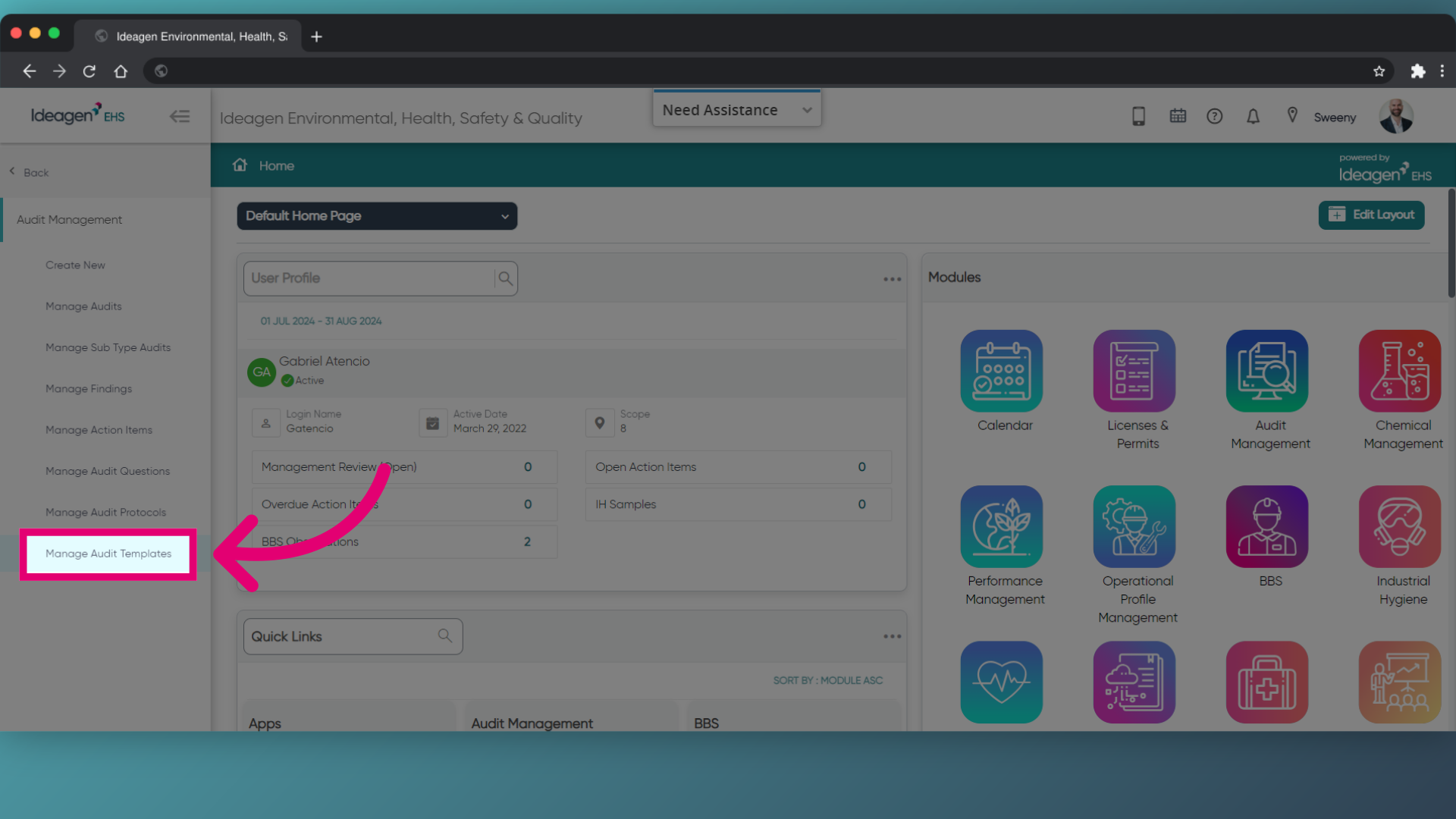
- Find the template you want to share.
- Click Download.
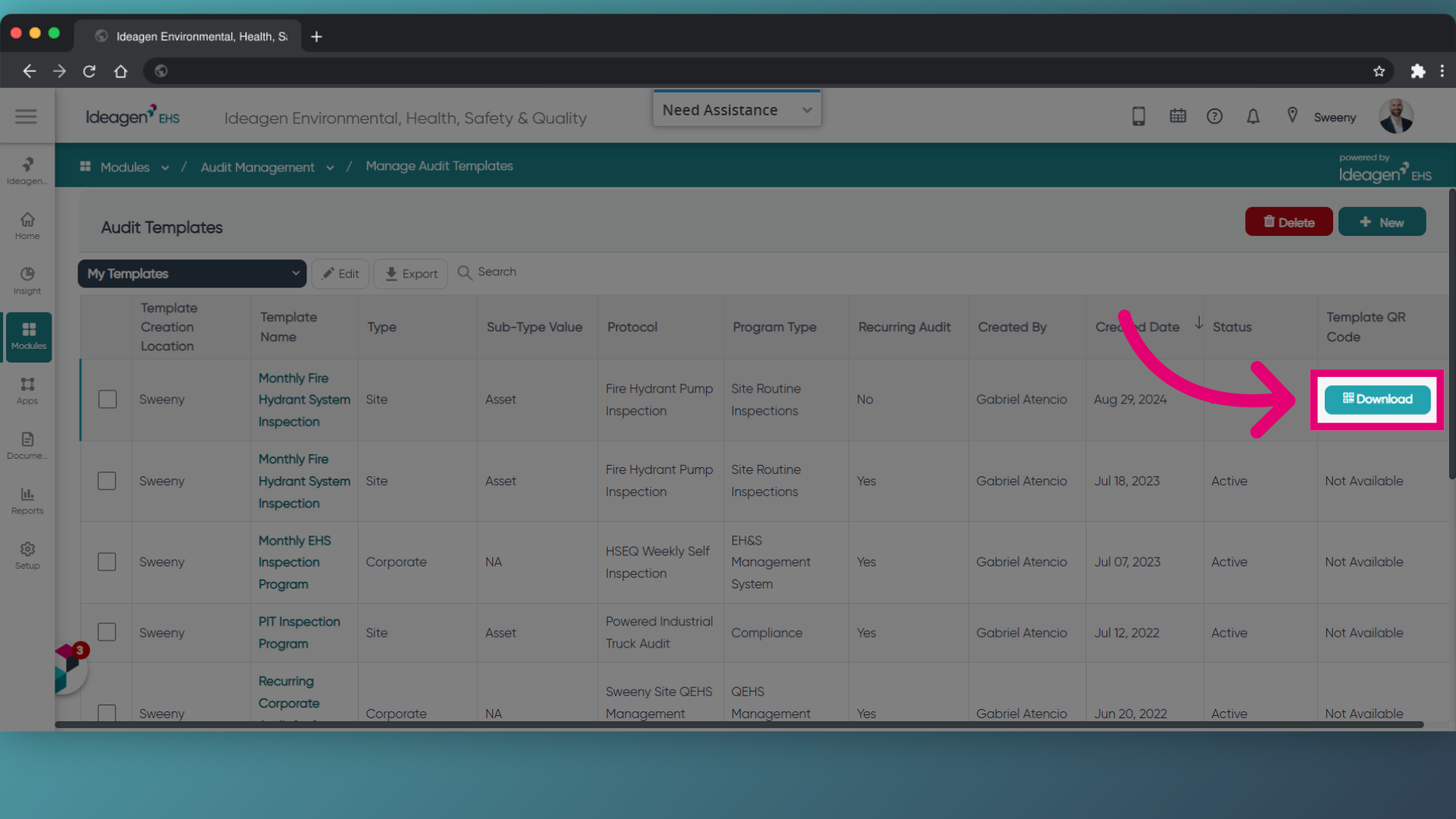
You will be given a QR code you can share with the users responsible for completing the Audit.
2. Scanning QR codes
To scan the code:
- Open the Ideagen EHS mobile app.
- Ensure you're logged in.
- Tap the Scan icon.
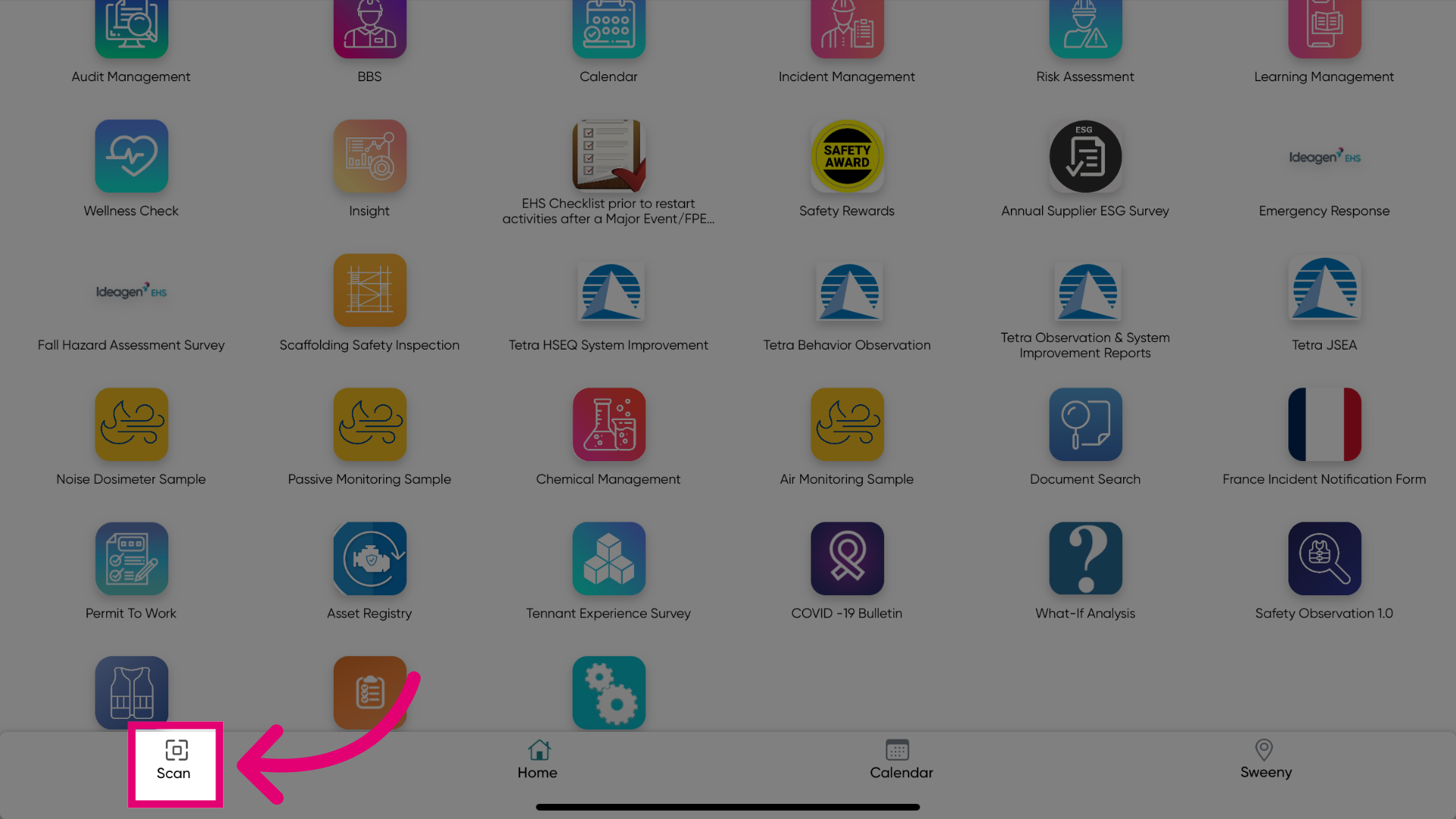
- Scan the QR code.
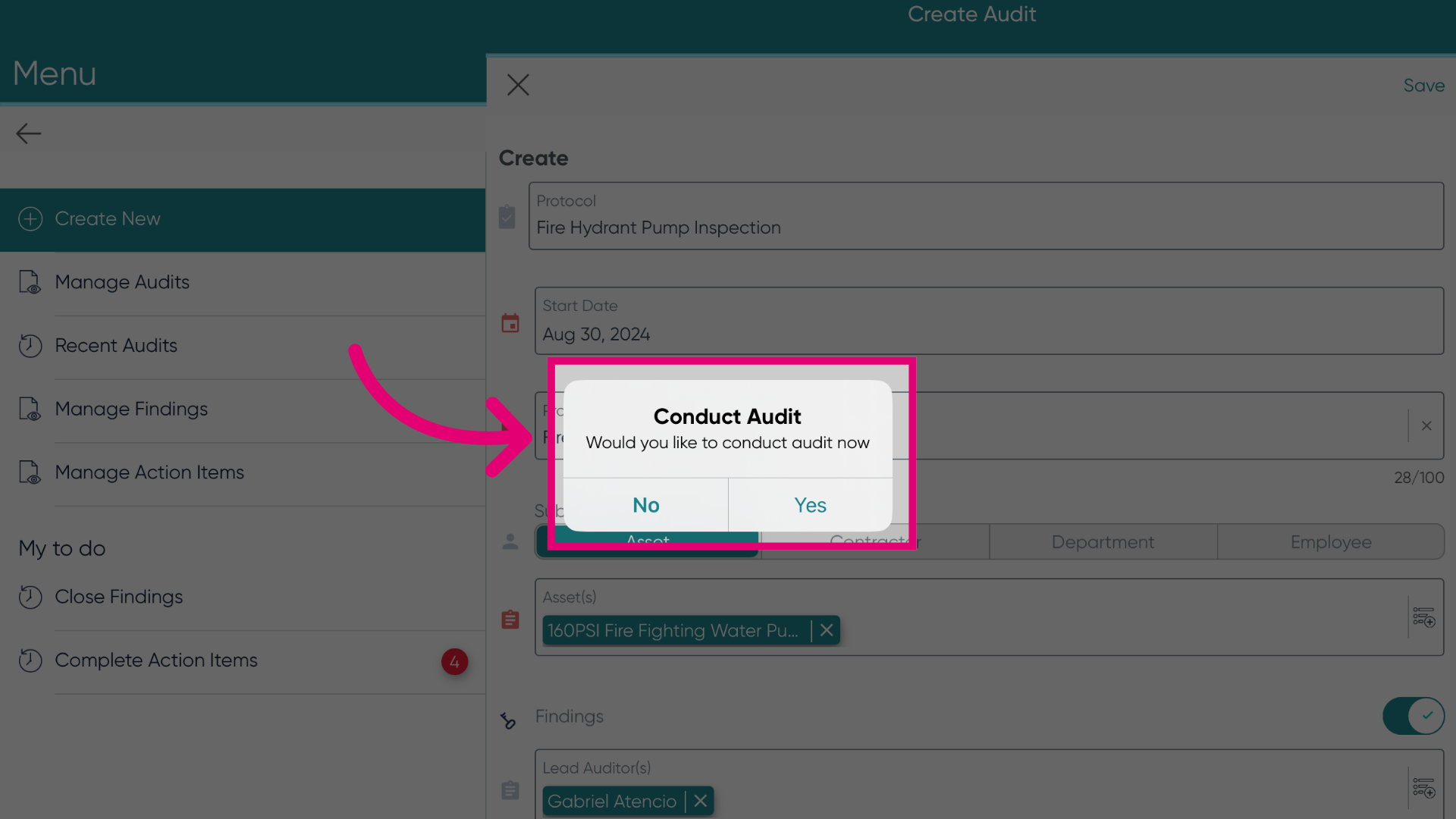
If the code is valid, the app will take you to the Create Audit screen.
Using a third party scanner?
If you scan the QR code using a third party app and you don't have the Ideagen EHS app installed, you will be taken to your respective app store where you can download it.
- Review pre-filled details.
- Tap Save.
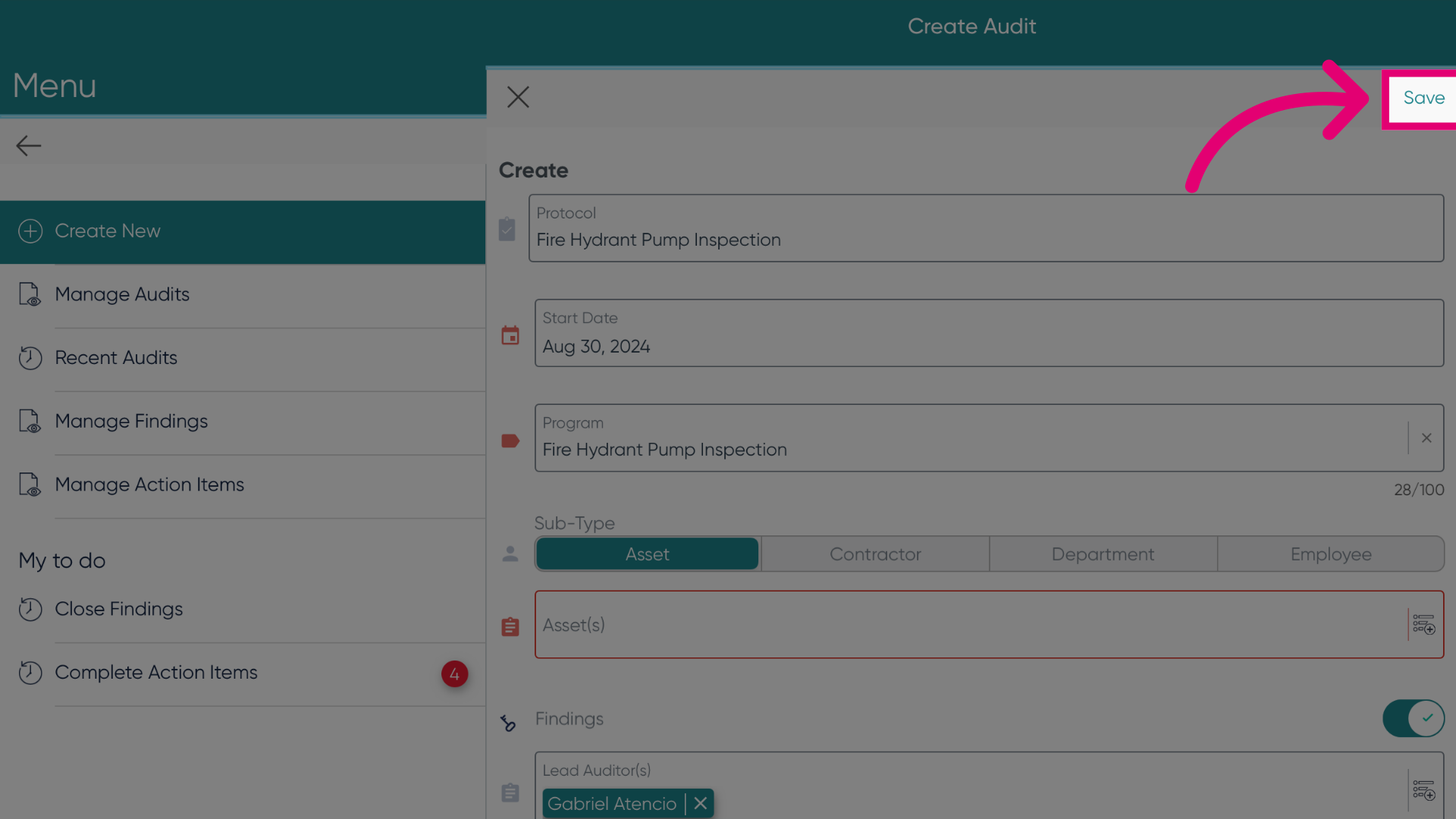
You will be given the option to start the Audit straight away, but you can tap No to come back to it at a later time.