New article
Recently updated
Using AI to complete Incident Summaries and Action Items

Who is this article for?Users using AI to complete incidents.
No elevated access or permissions are required.
AI can be used to complete incident summaries and action items.
This will enable quicker reviews and informed decision-making and easier for corporate users to understand regional incidents created in different languages by providing summaries in their logged-in language.
This article outlines how to use the AI features when working on an incident.
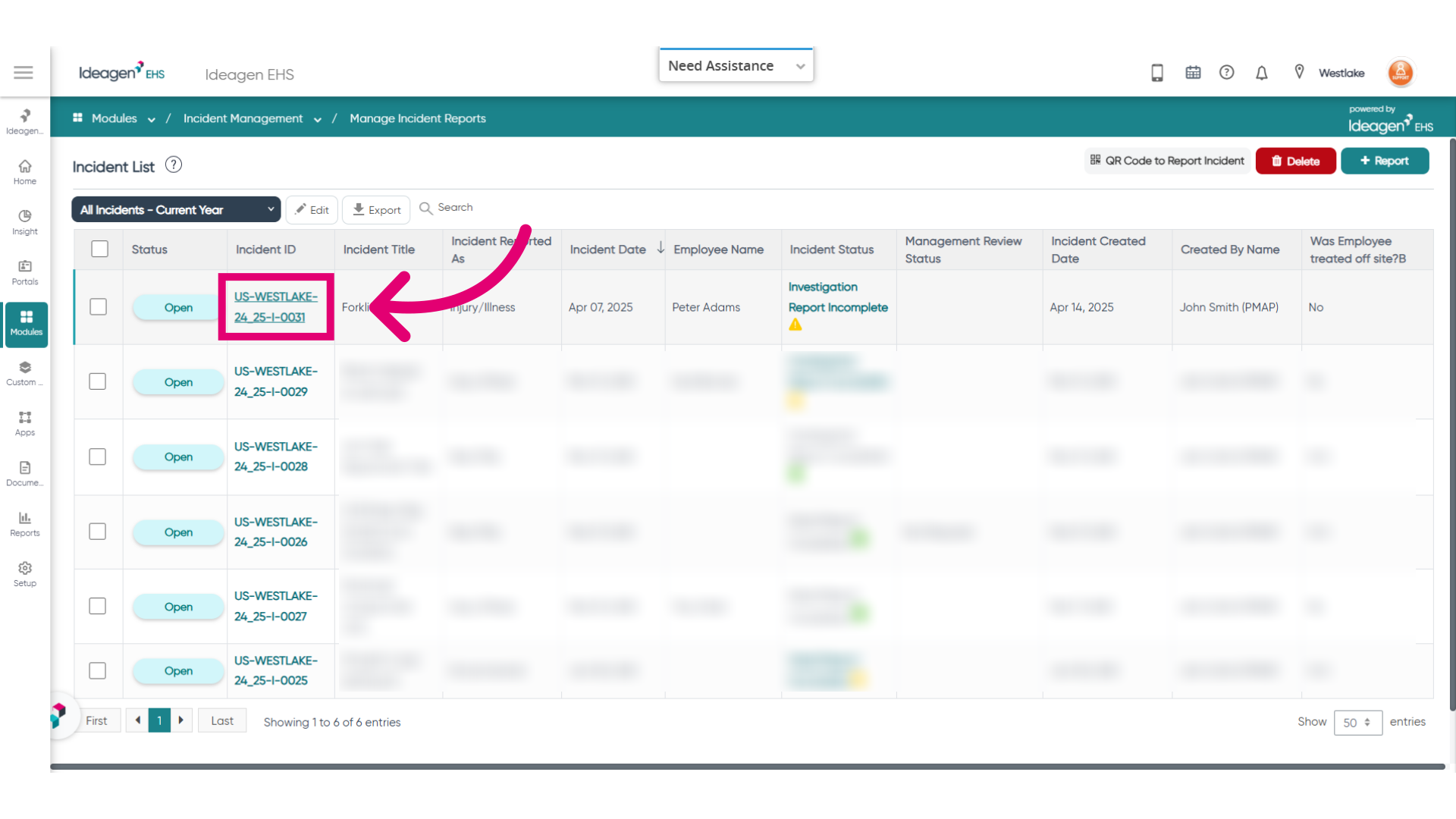
- Open the Incident.
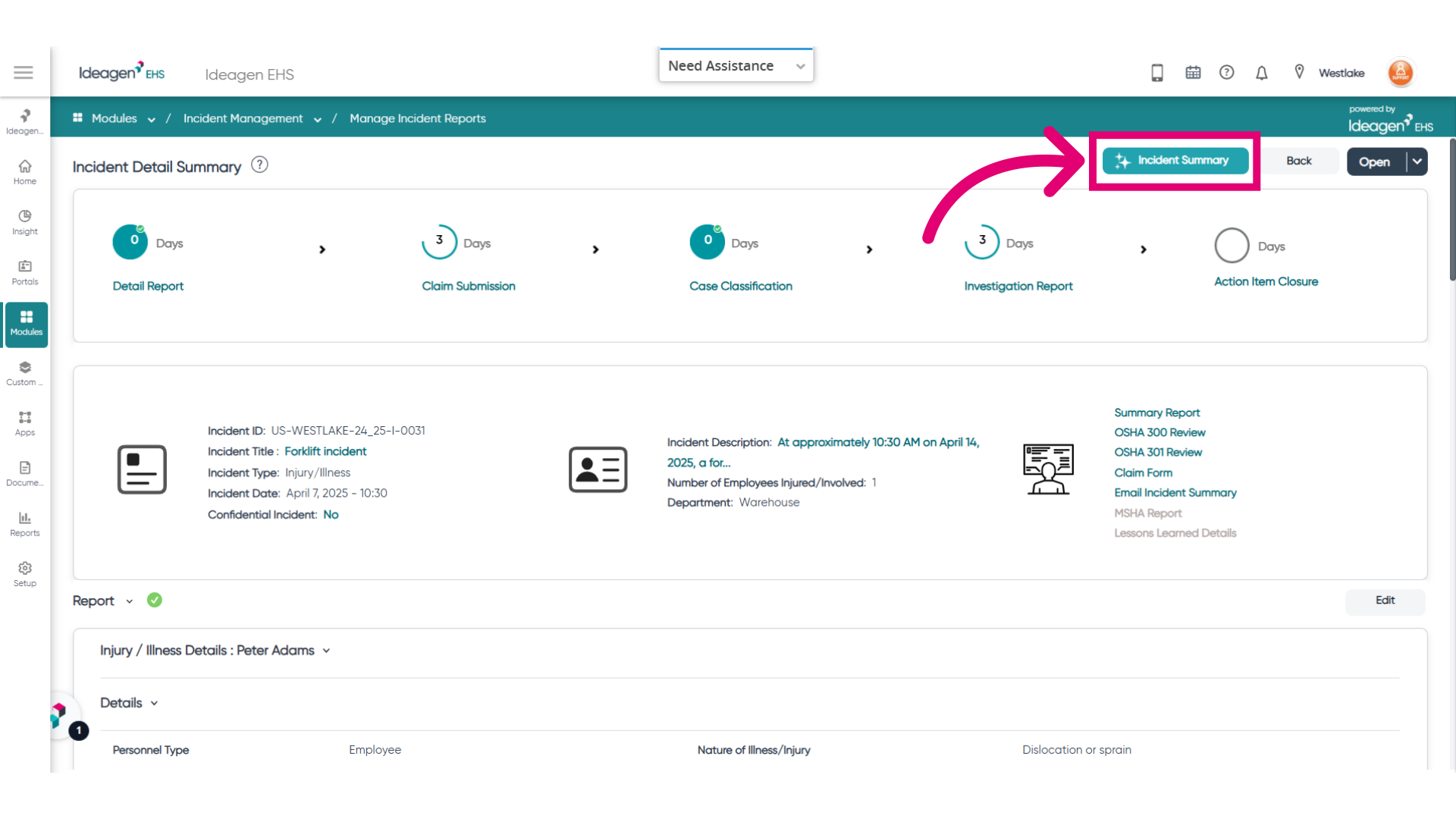
- Click "Incident Summary" and then click the "AI Incident Summary" button located on the incident summary screen.
-
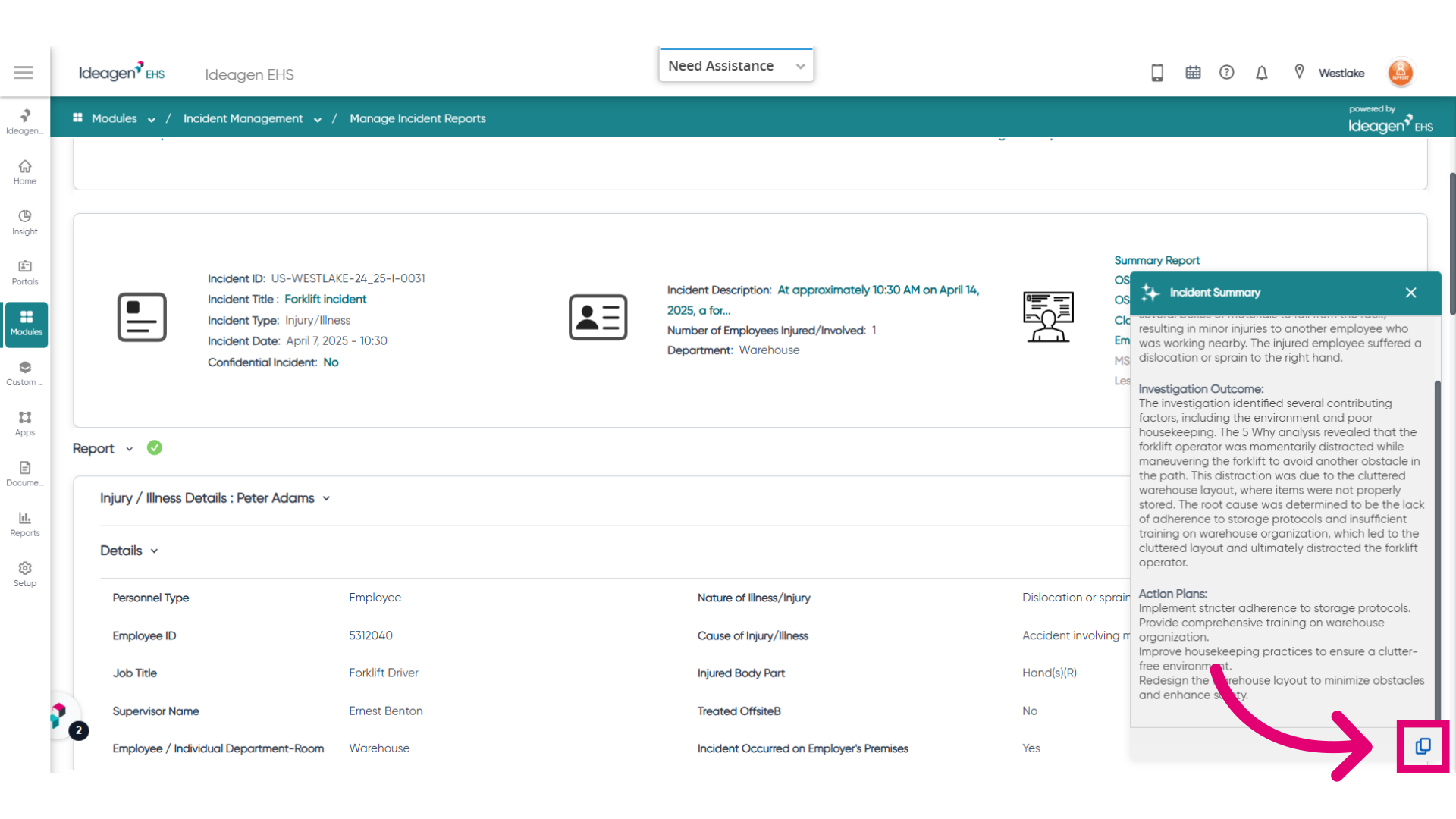
The AI summary will be displayed in a convenient pop-up window located in the bottom right corner of your screen. This summary is structured into three distinct sections: 'What Happened,' 'Investigation Outcome,' and 'Action Plan.' Each section will be populated as the relevant information becomes available.
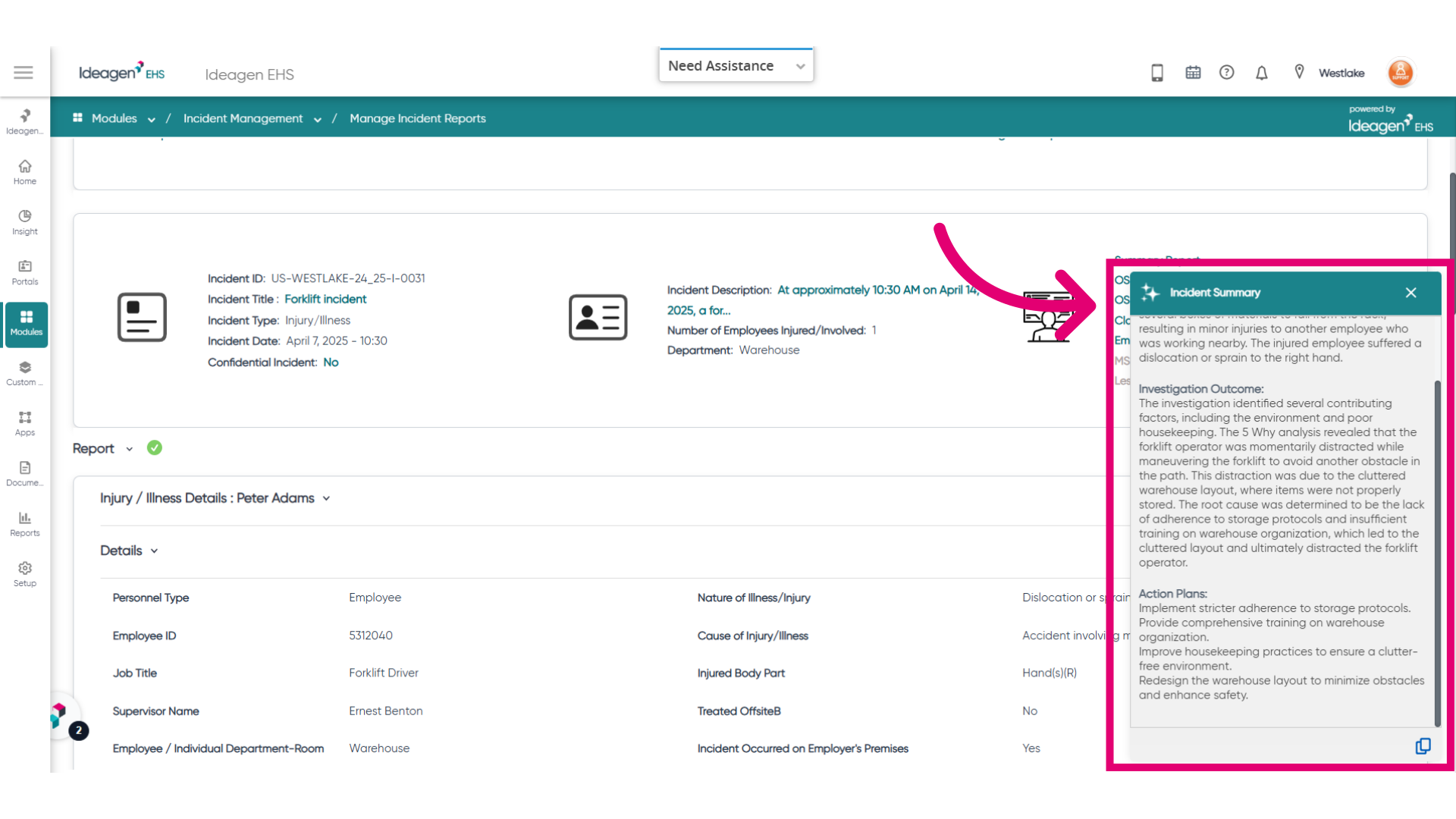
- Simply click the 'Copy' button to effortlessly copy the summary to your clipboard.
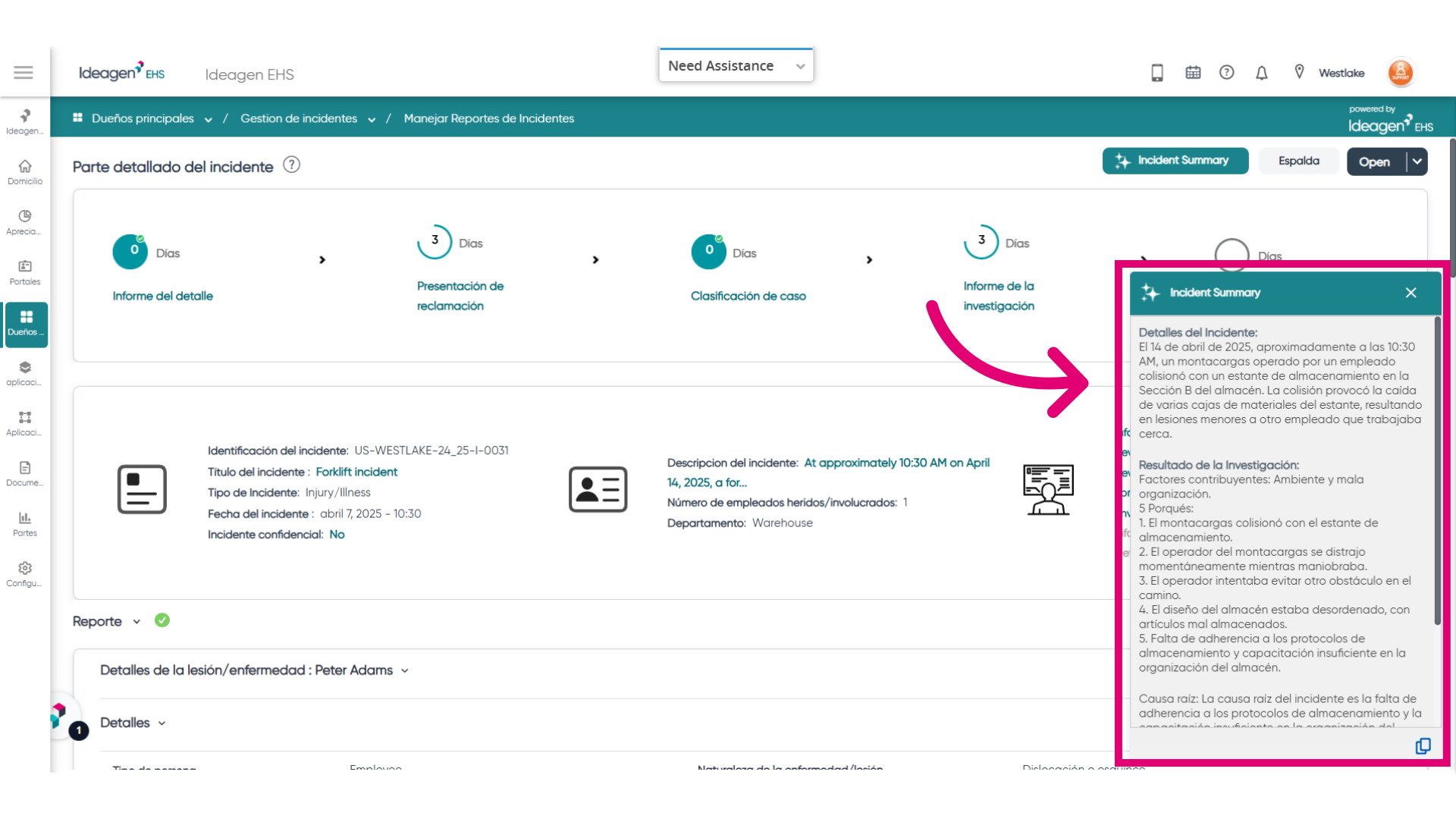
- Furthermore, the AI generated summary will be presented in the user's logged in language, regardless of the language used when the incident was created.
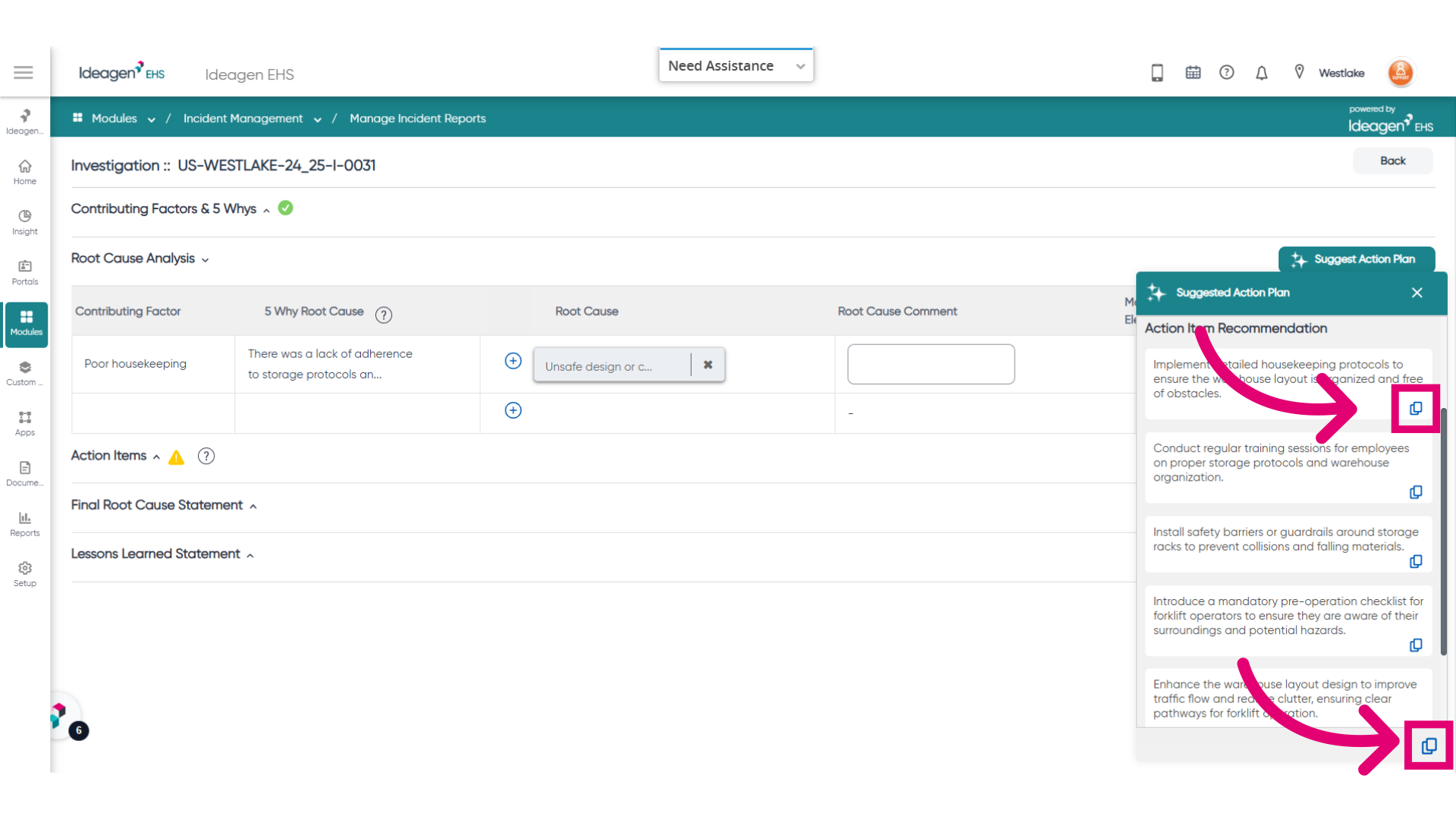
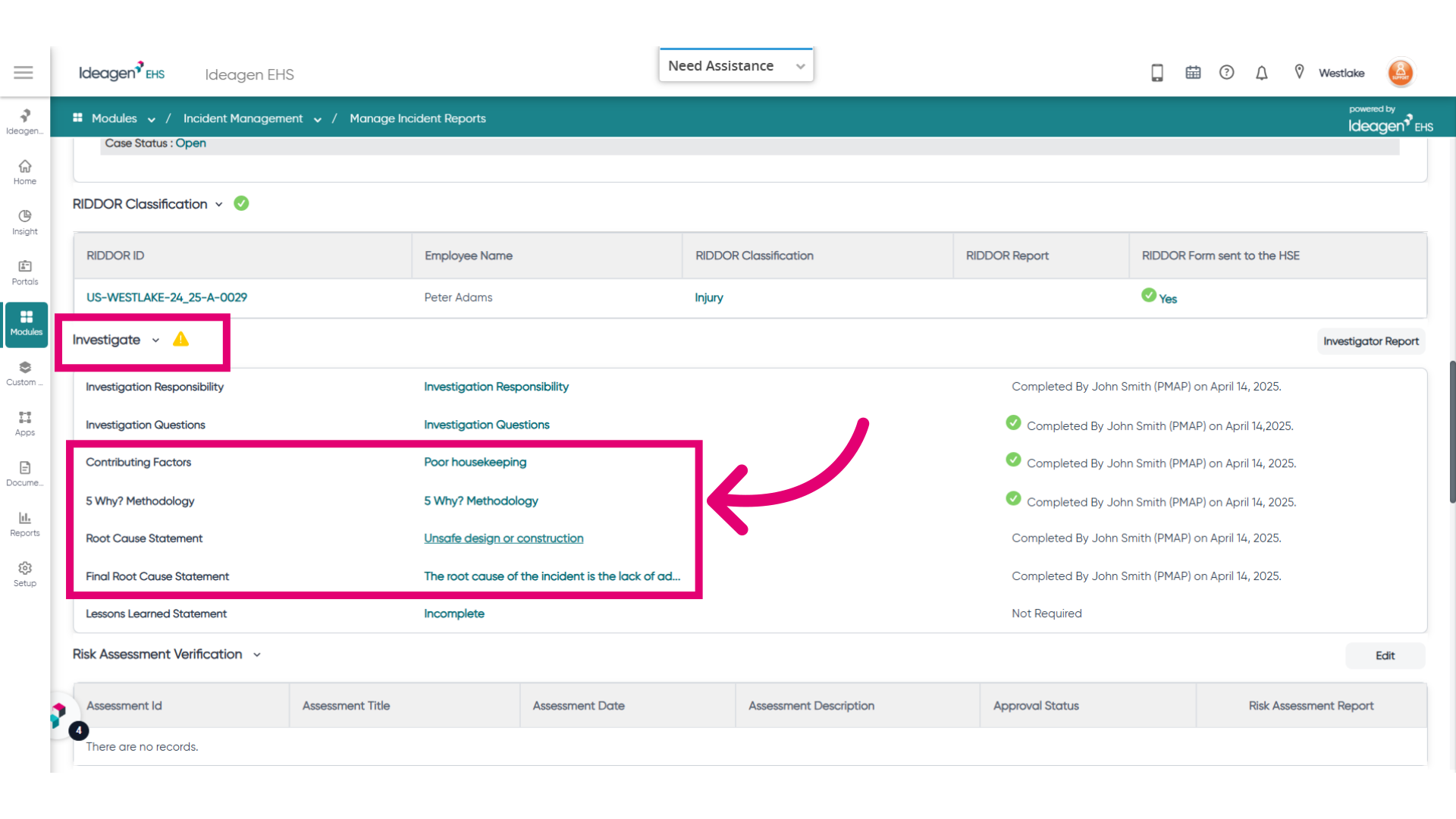
- To access the AI Action Item Recommendations tool, head to the investigation screen. This innovative AI feature offers tailored action item suggestions for incident investigators based on available incident and investigation details.
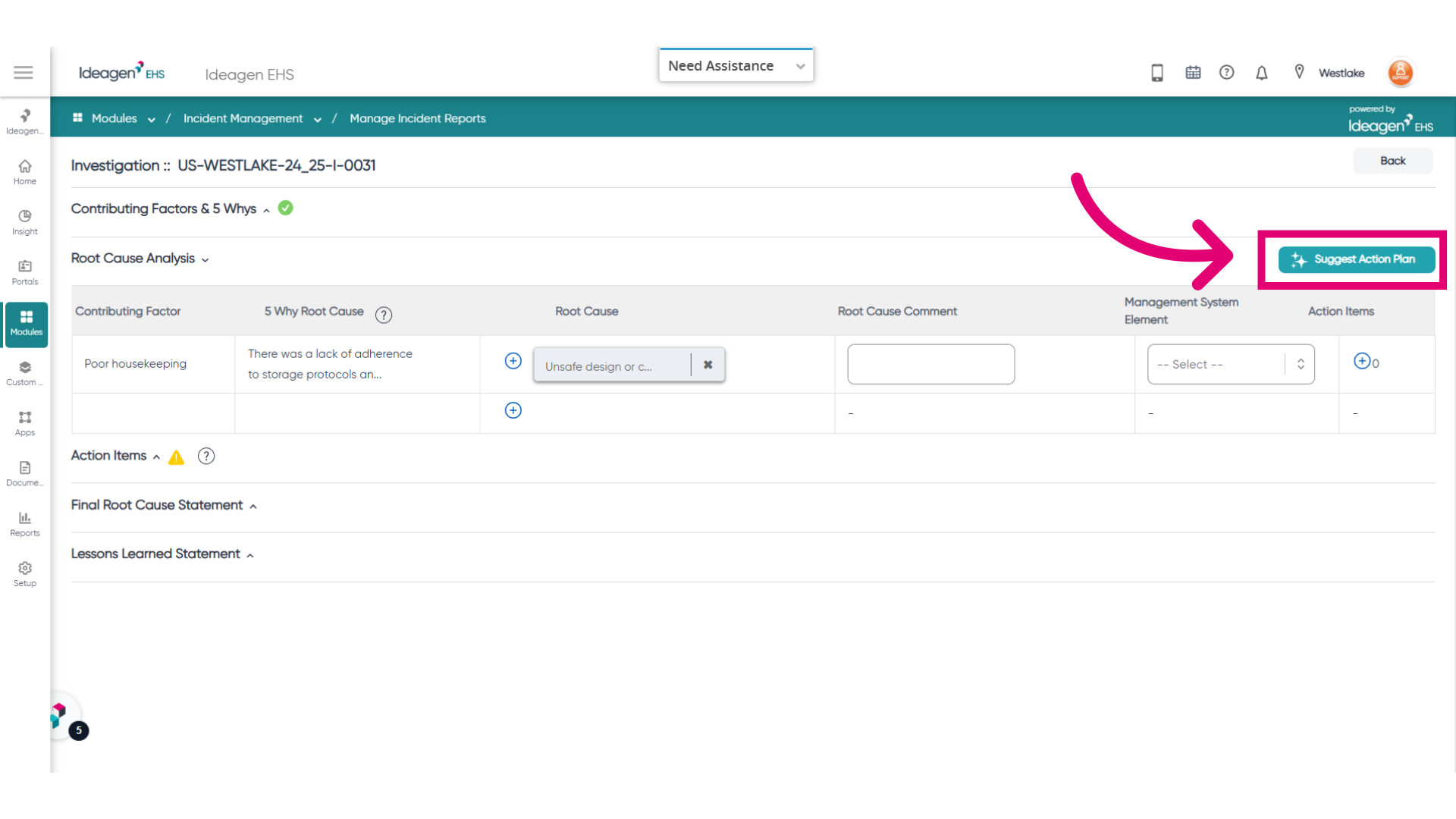
- To receive AI generated Action Item recommendations, just click the 'Suggest Action Plan' button found in the Root Cause Analysis section.
- AI Action Item recommendations will be displayed in a pop-up window located at the bottom right corner of your screen. Recommendations are provided for each Root Cause Category identified during investigation.
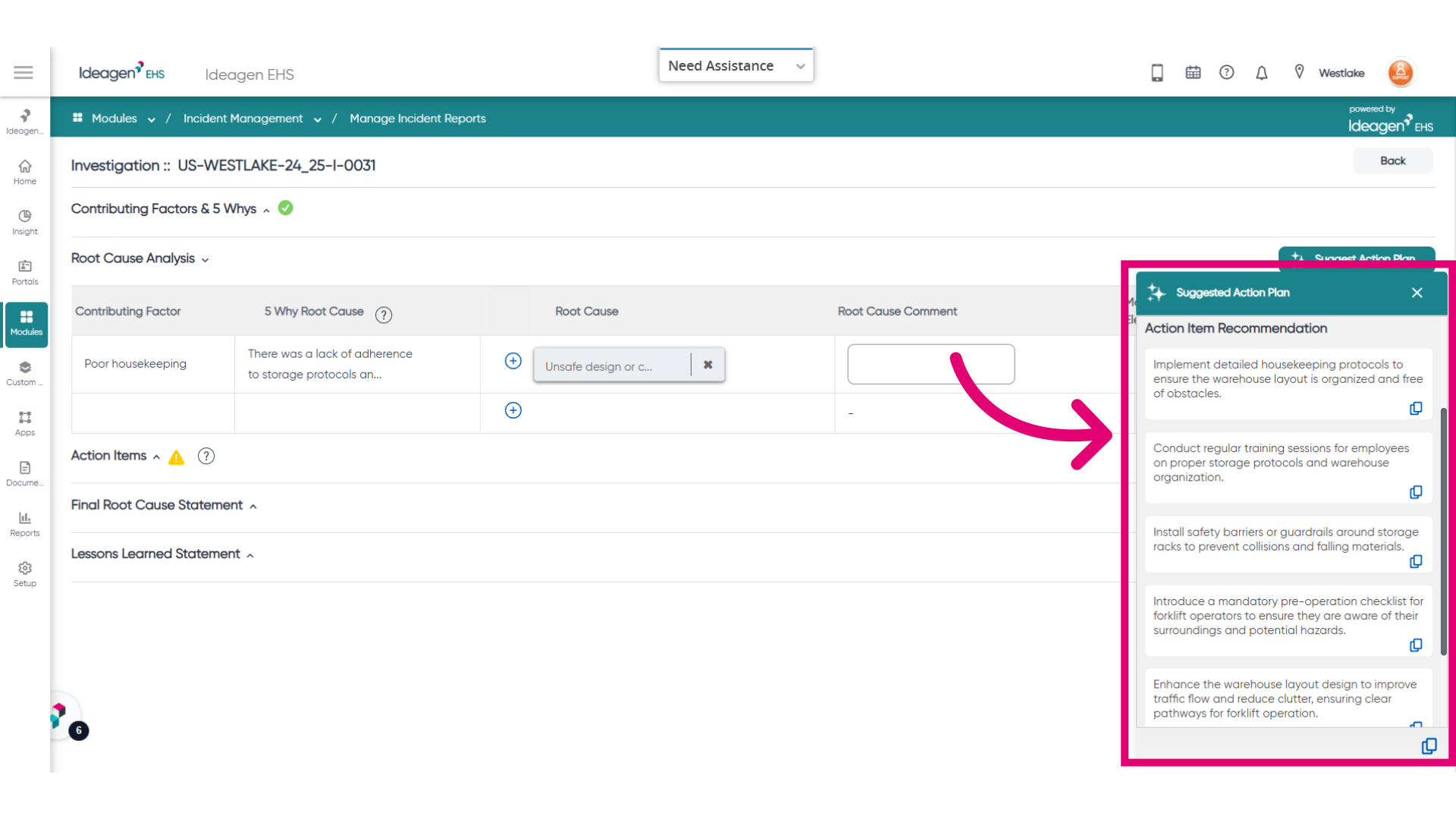
- Effortlessly copy an individual action item or all action items to your clipboard by simply clicking the 'Copy' button. Similar to the Summary, the AI generated action recommendations will be presented in the user's logged in language, regardless of the language used when the incident was created.