


New article
Recently updated
Viewing Documents using QR codes on mobile

Who is this article for?Users accessing Documents on mobile.
Document Management permissions and Ideagen EHS mobile app access are required.
Documents are a vital part of keeping processes running smoothly, so it's important that sharing the vital information they contain with users within your organisation is efficient.
This article walks you through the steps to generate and share a QR code that can be used by mobile device users to access the Document with only a couple of taps.
1. Accessing QR codes
To access a Document code:
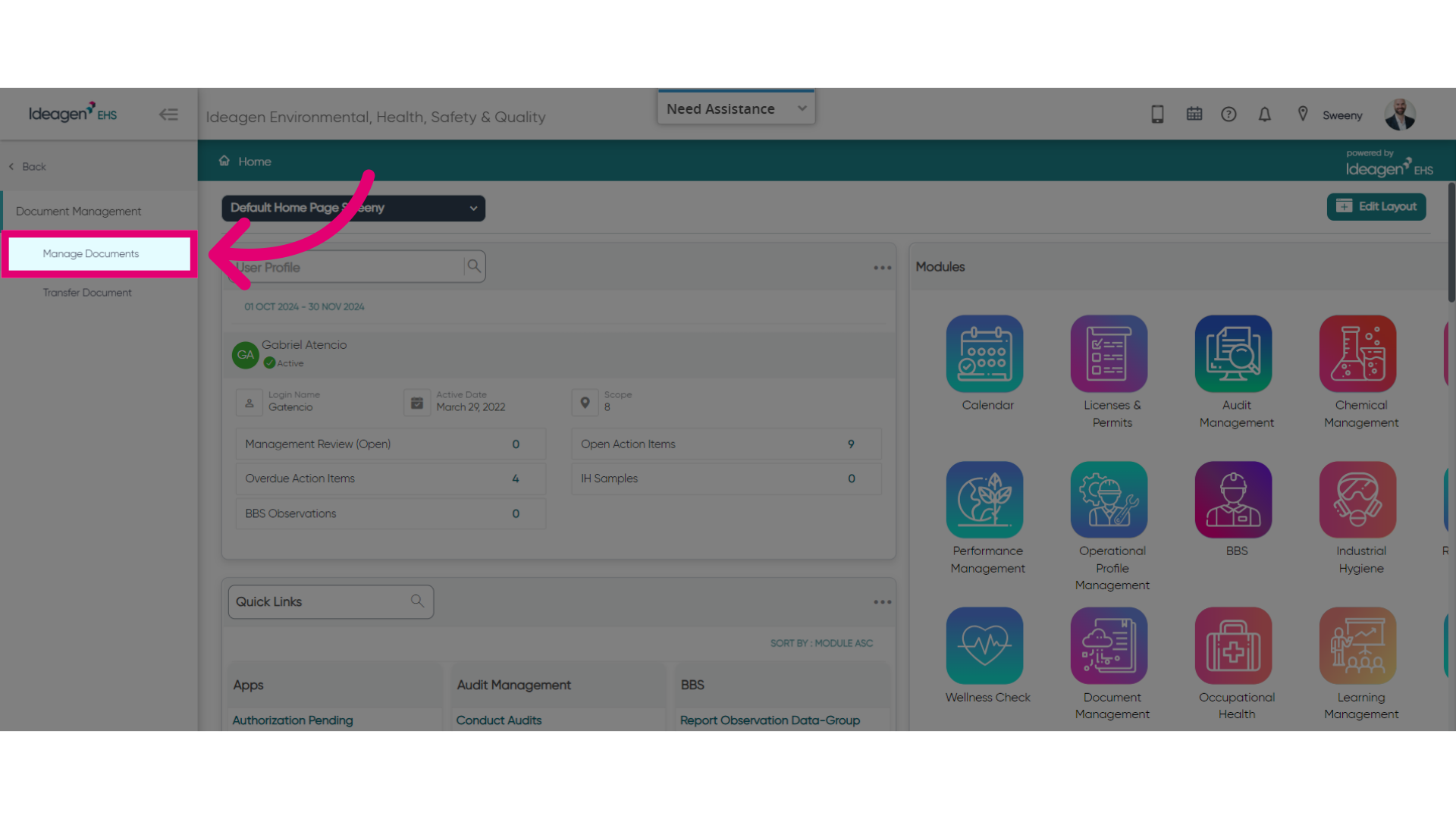
- Access the Documents module.
- Select Document Management.
- Choose the Manage Documents option.
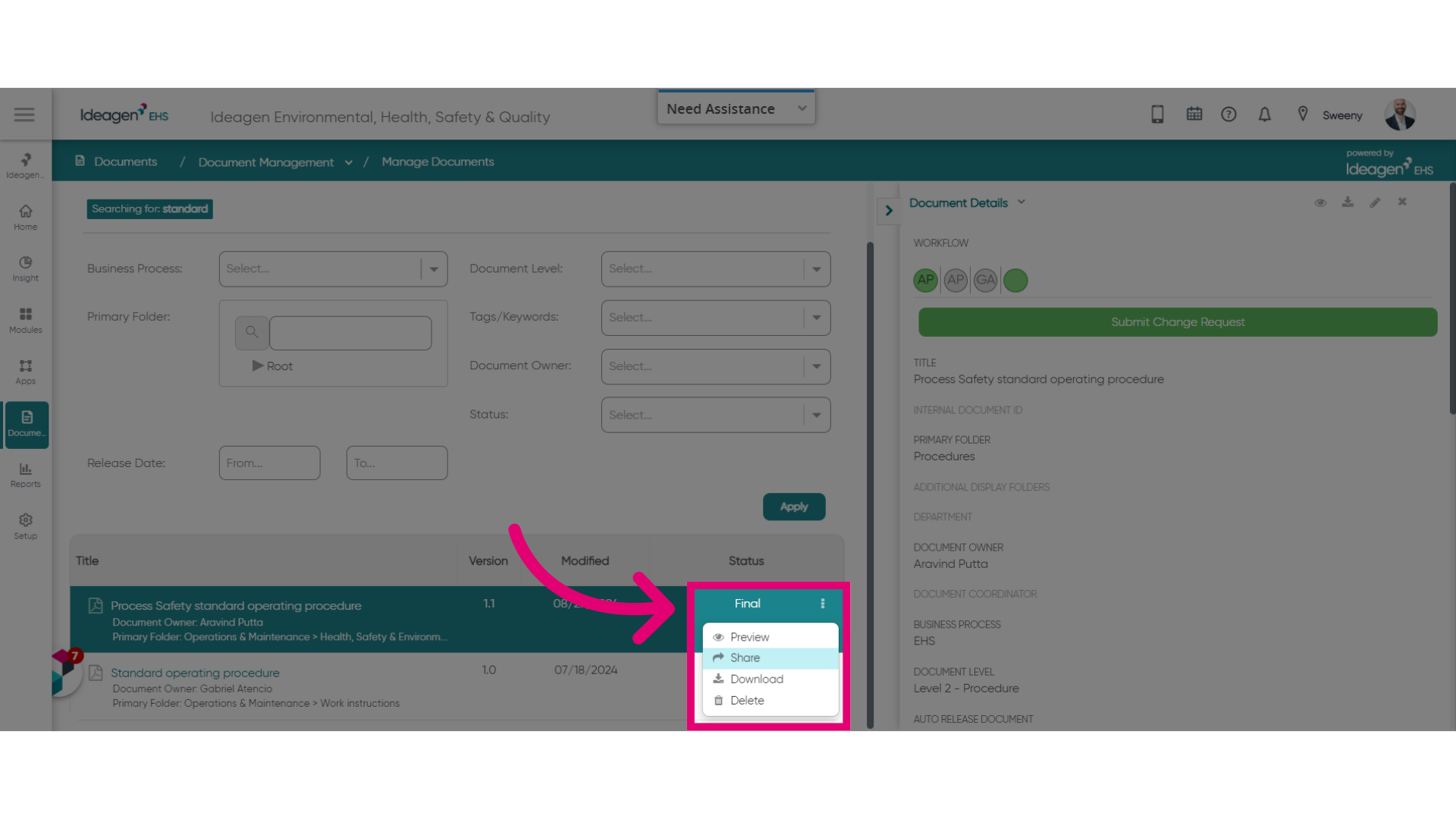
- Search for a Document.
Only Final Documents can be shared. - Open the actions menu.
- Click Share.
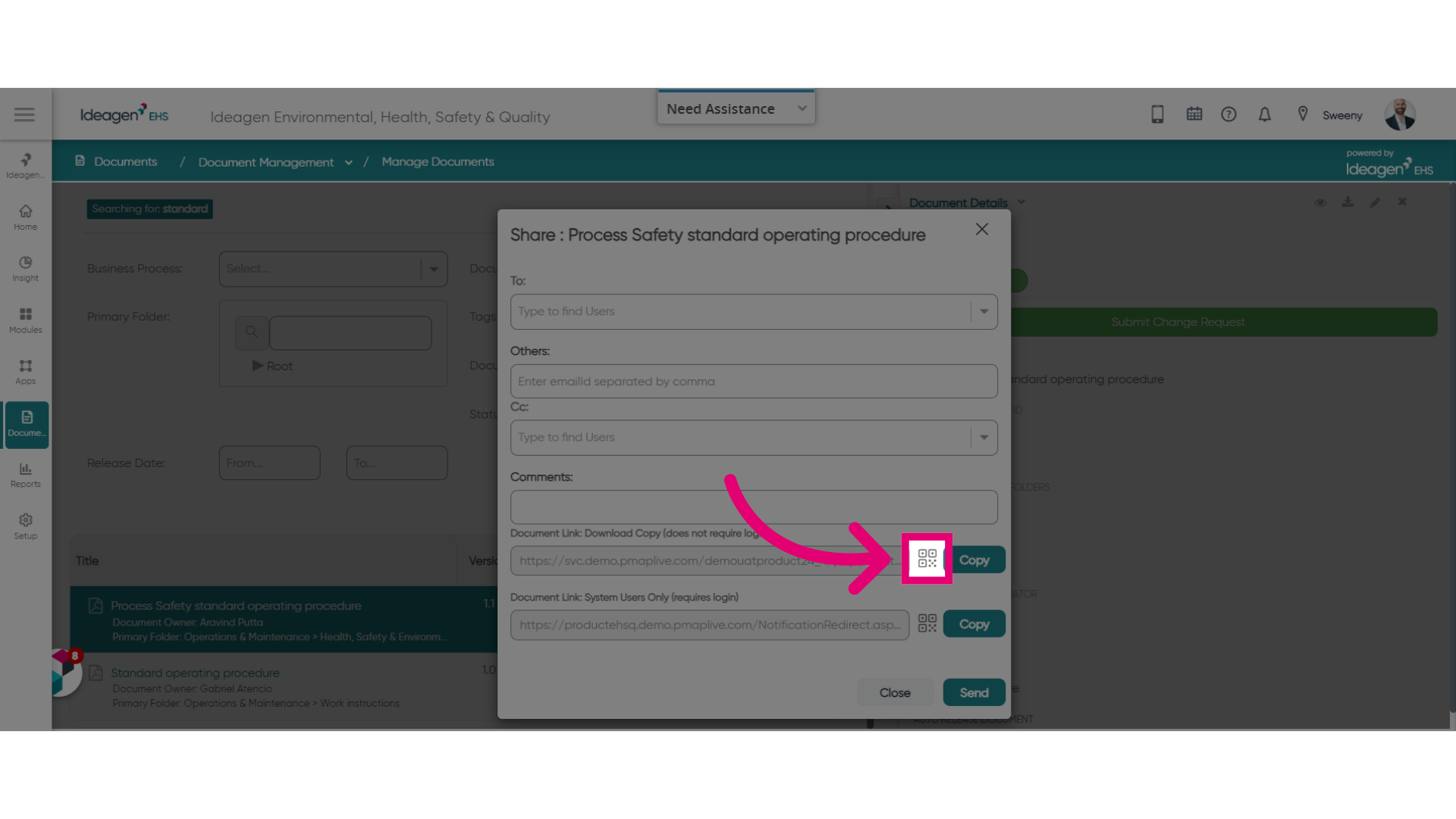
- Click the QR code icon.
You can choose between a QR code with a public link to the document download or with a redirection to the document in the app.
- Click Download.
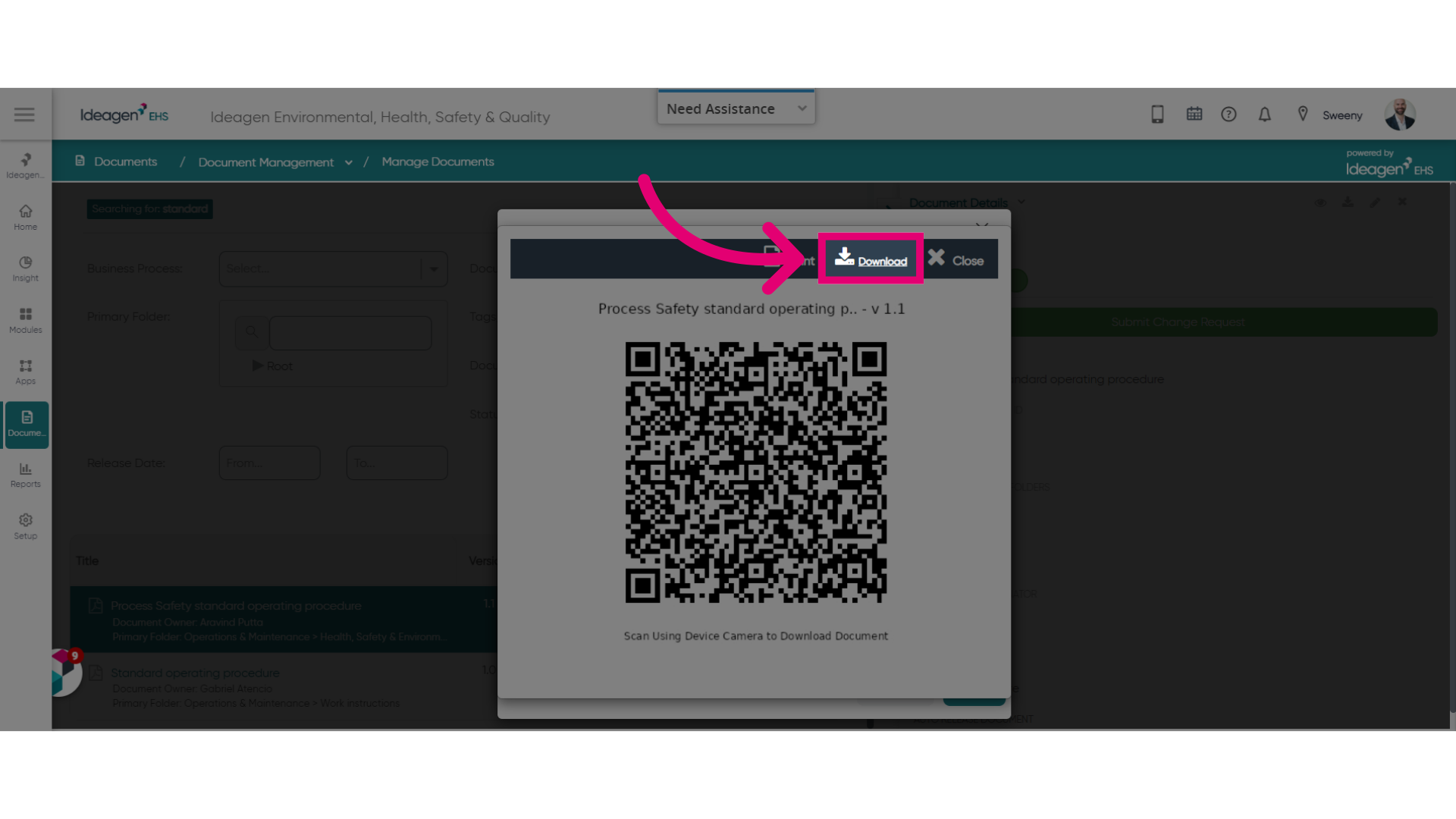
You can share the link with all users that need access to this specific Document.
2. Scanning QR codes
2.1. Document Link: Download Copy
To scan a public code:
- Open your device camera.
- Scan the QR code.
Your default mobile browser will open, taking you to a copy of the Document.

2.2. Document Link: System Users
To scan a redirection code:
- Open the Ideagen EHS app.
- Log in.
- Tap Scan.
- Scan the QR code.
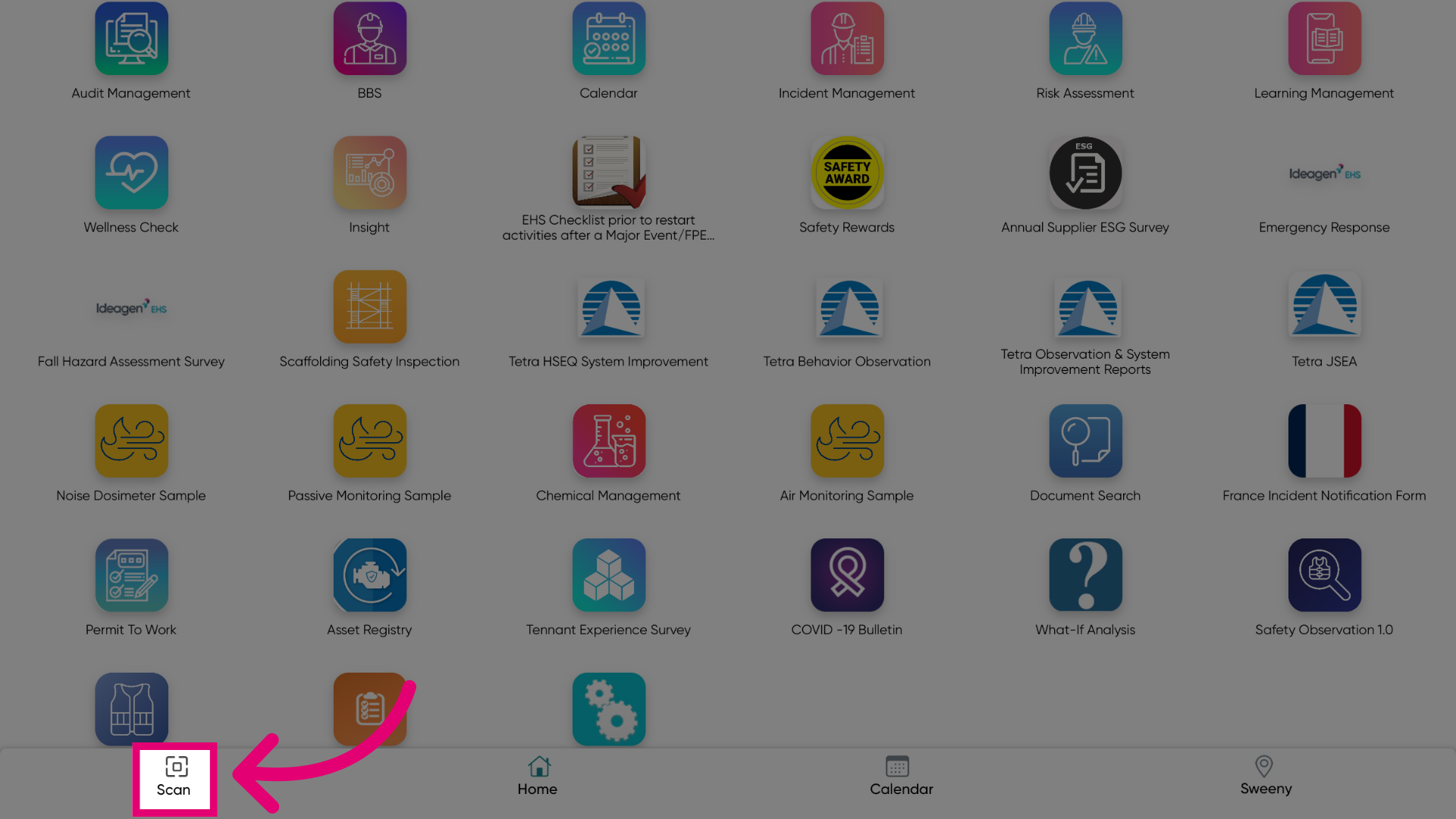
Your page will refresh, taking you to the Document within the system.
Make sure Document Search is enabled to allow users navigate to the respective Document.