New article
Recently updated
Configuring App Translation Management

Who is this article for?Users configuring app languages.
App builder access is required.
This guide will walk you through the steps to manage multilingual translations for apps using the new, translations utility tool in App Builder. This new tool gives administrators greater control over language translations, enhances process efficiency, improves translation quality, and reduces the professional services costs
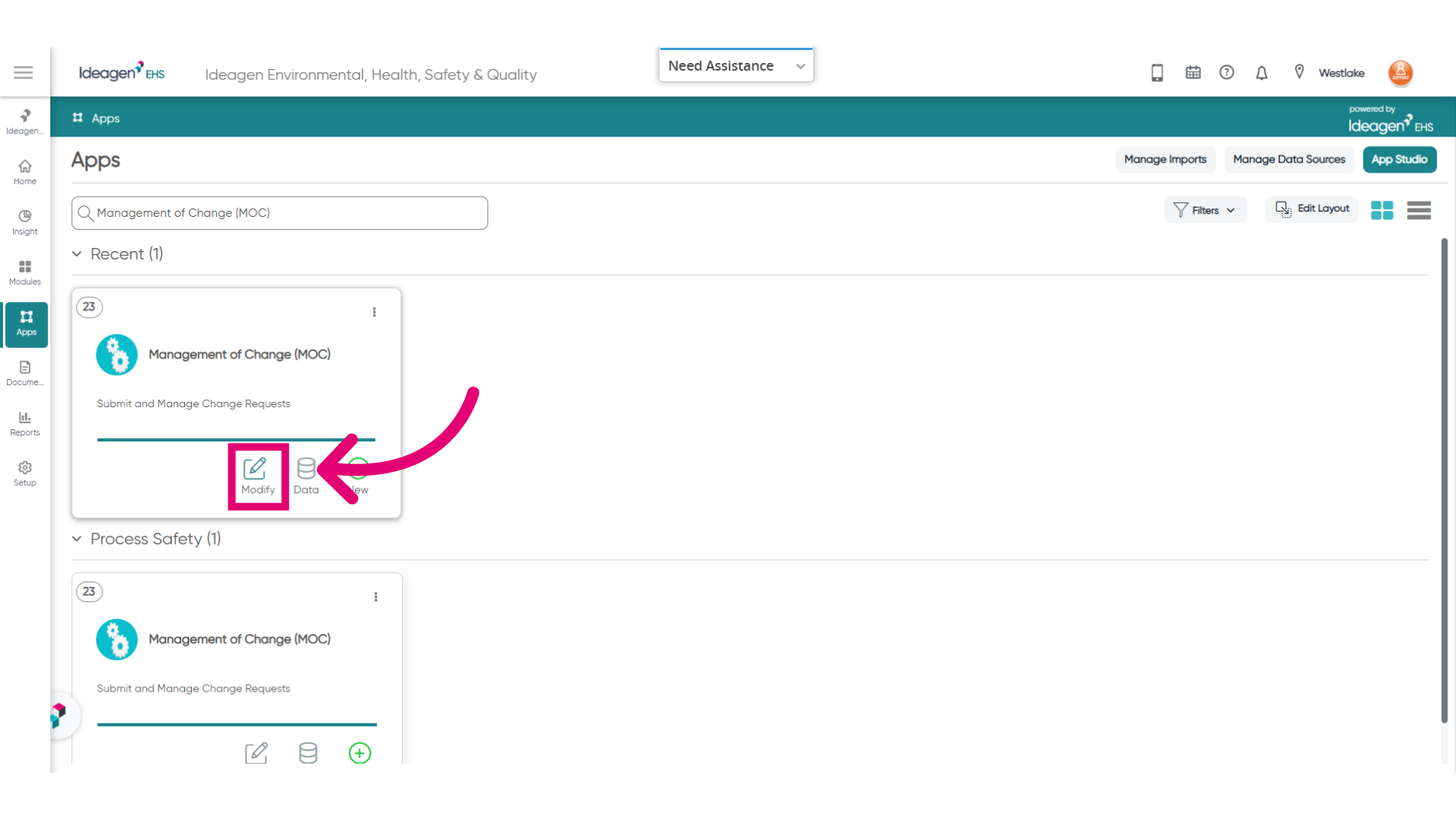
- Search for the app you want to manage translations for and click Modify.
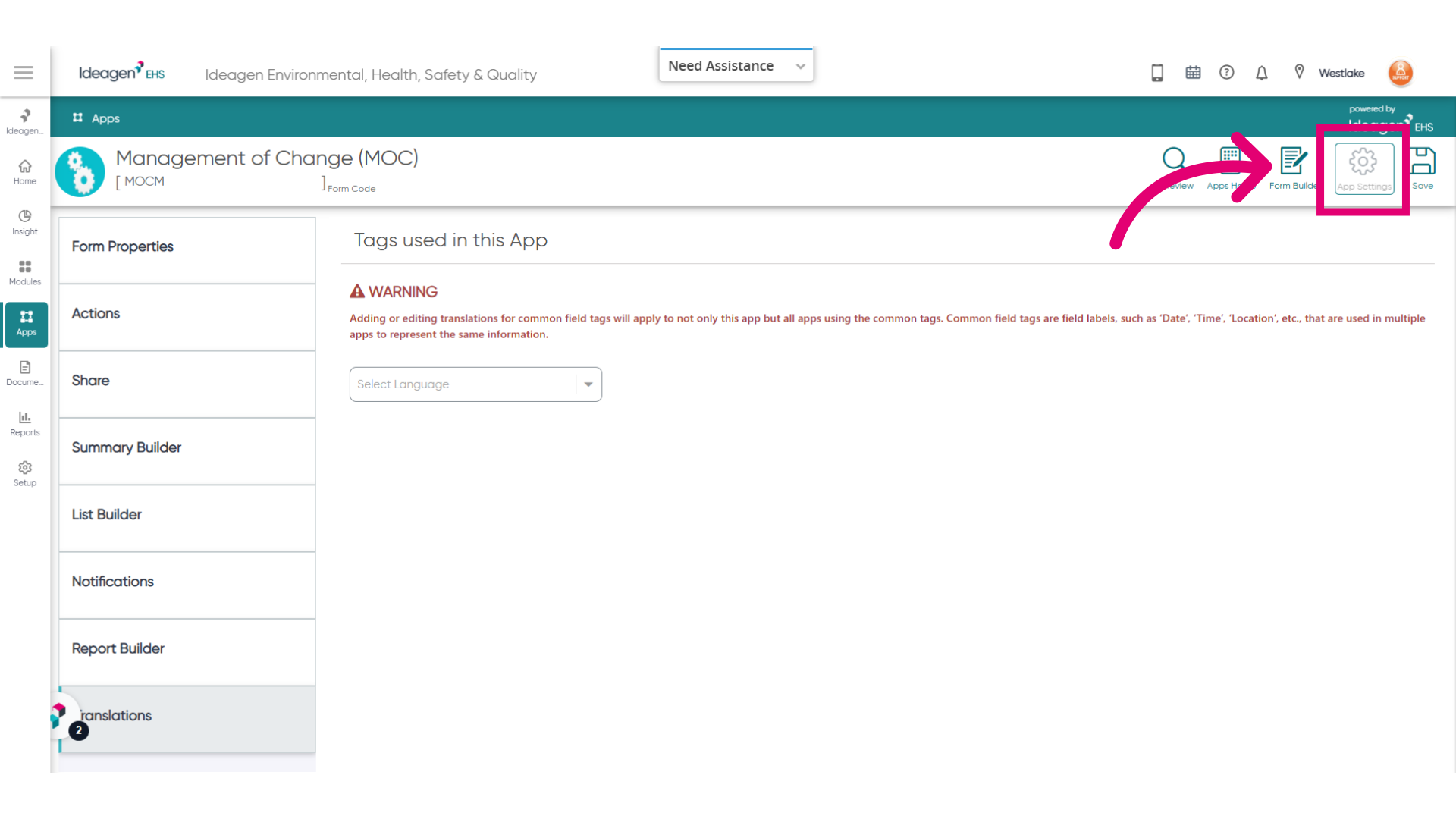
- Click App Settings.
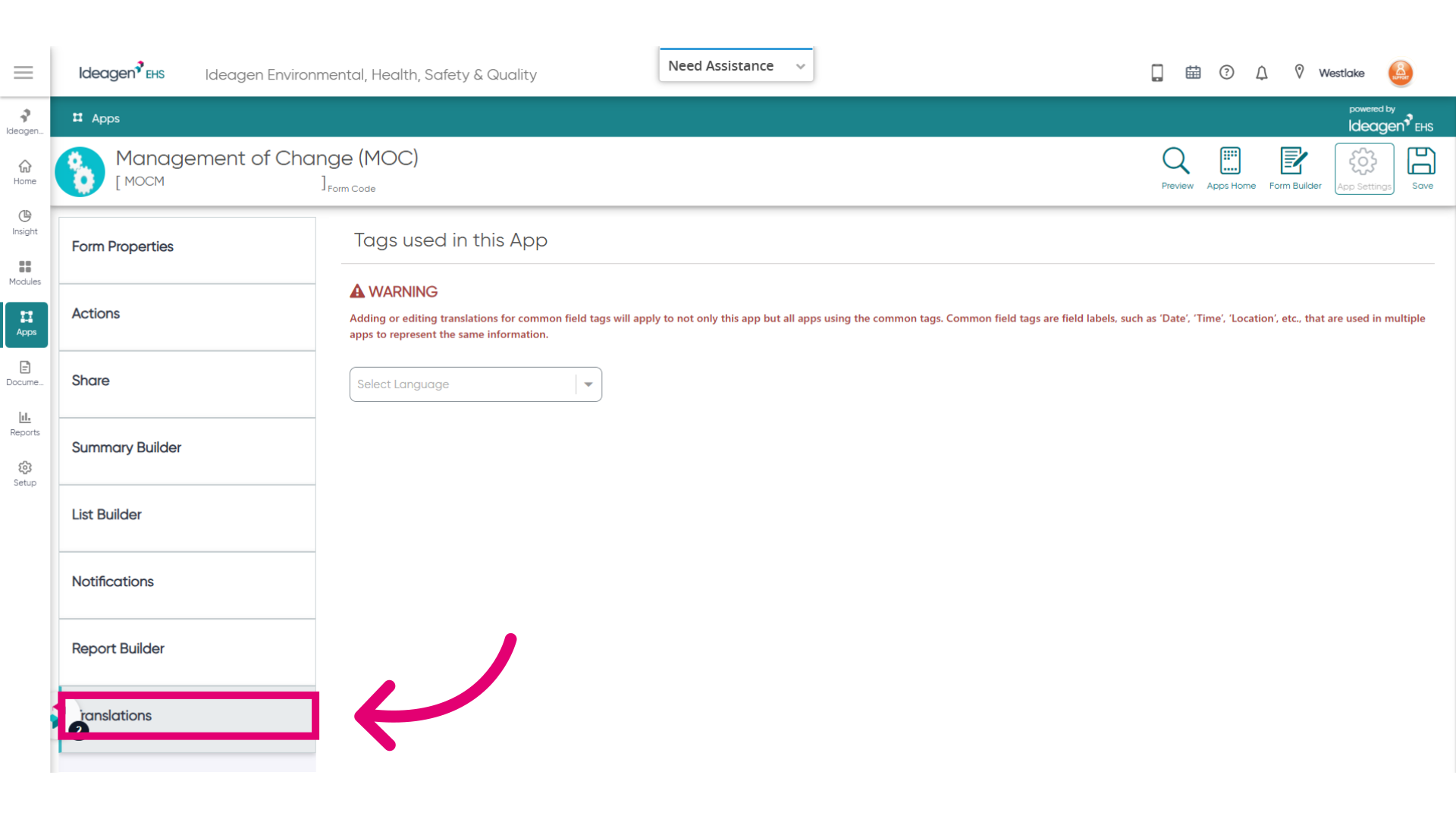
- Click on the translations tab and open the translations management tool.
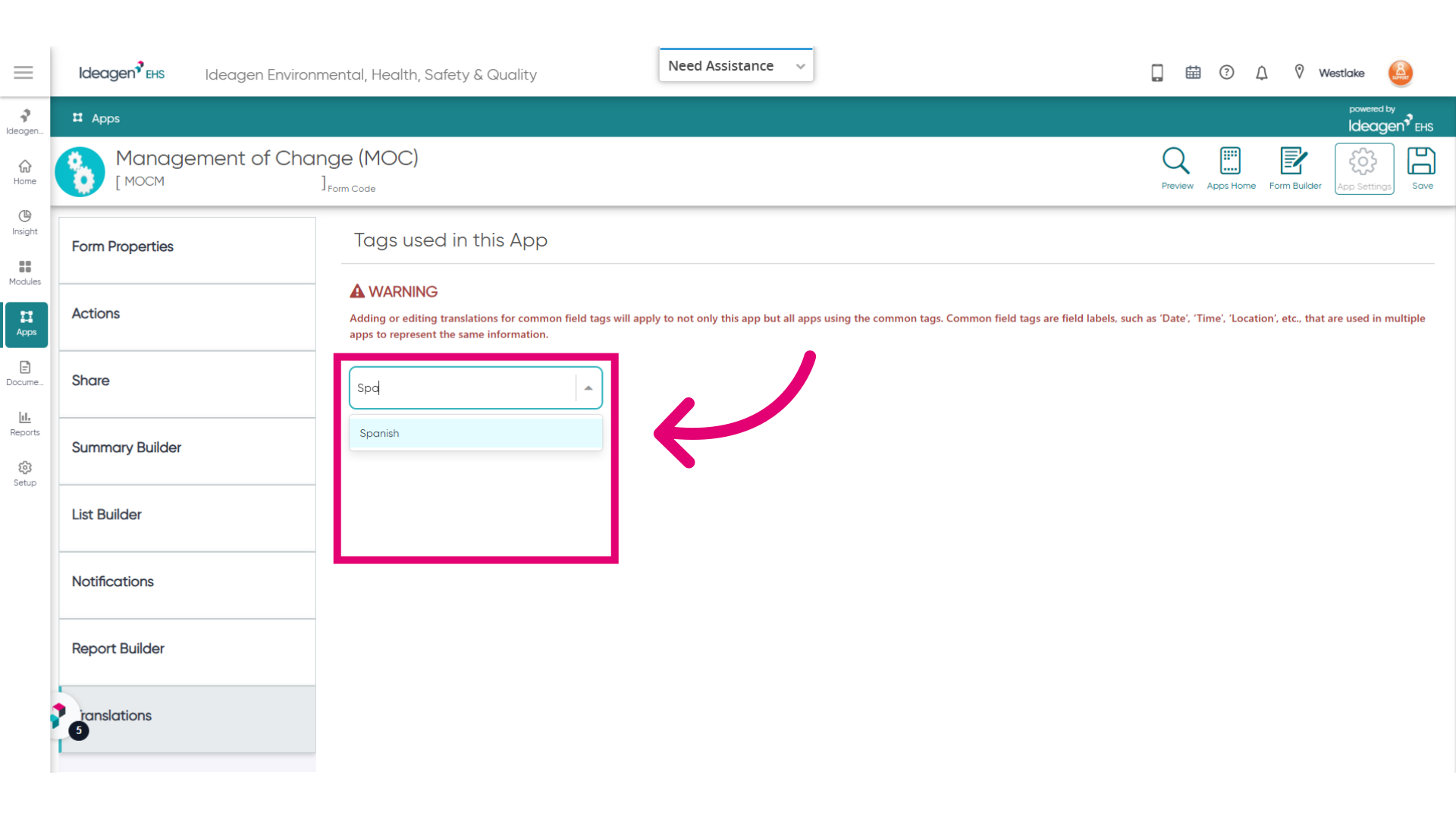
- Search and select the desired language translations you want to manage.
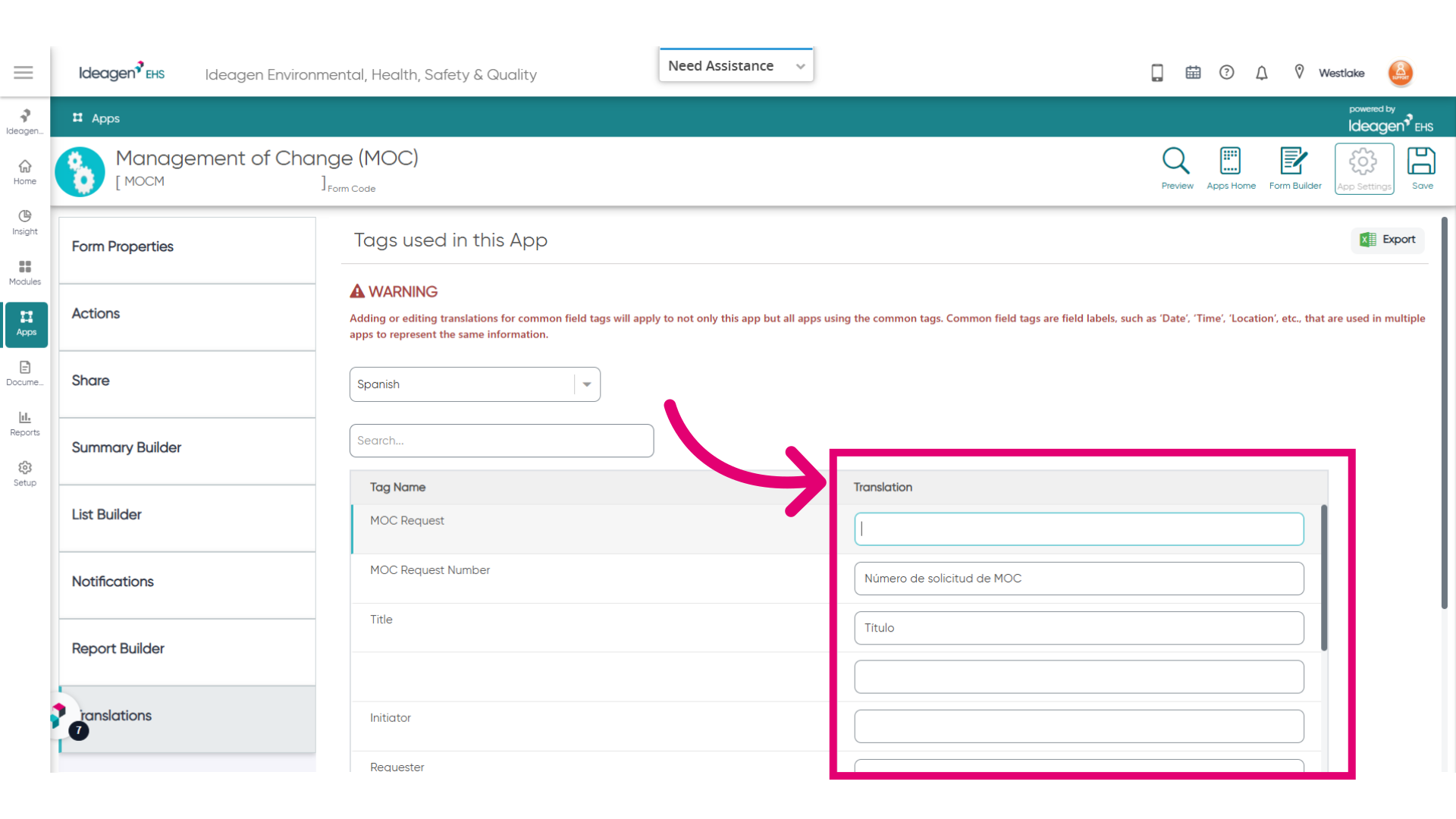
- Click on any field in the translation column to add a new tag or edit an existing tag for the selected language.
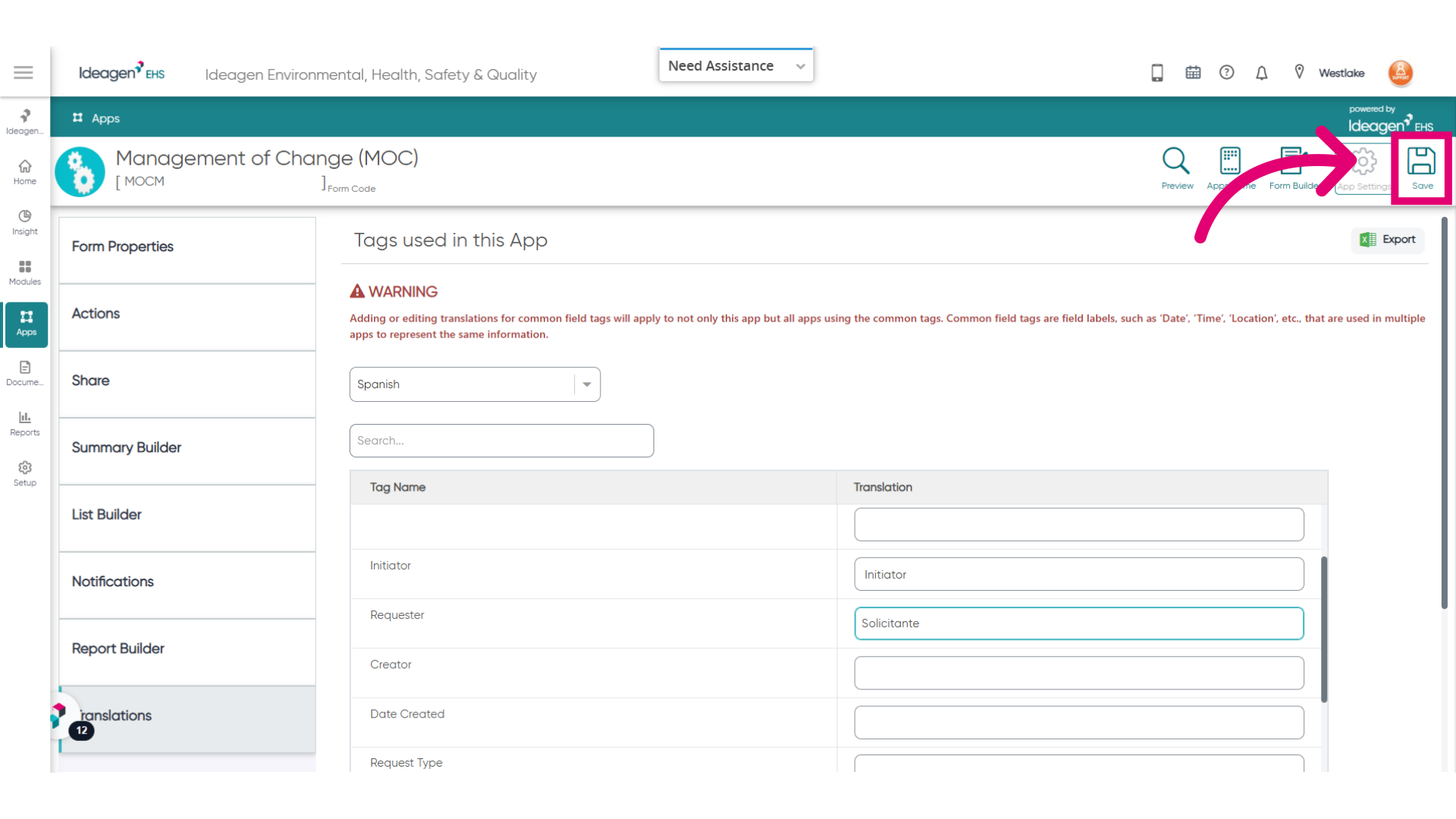
- To save your progress or after making the necessary edits, click Save.
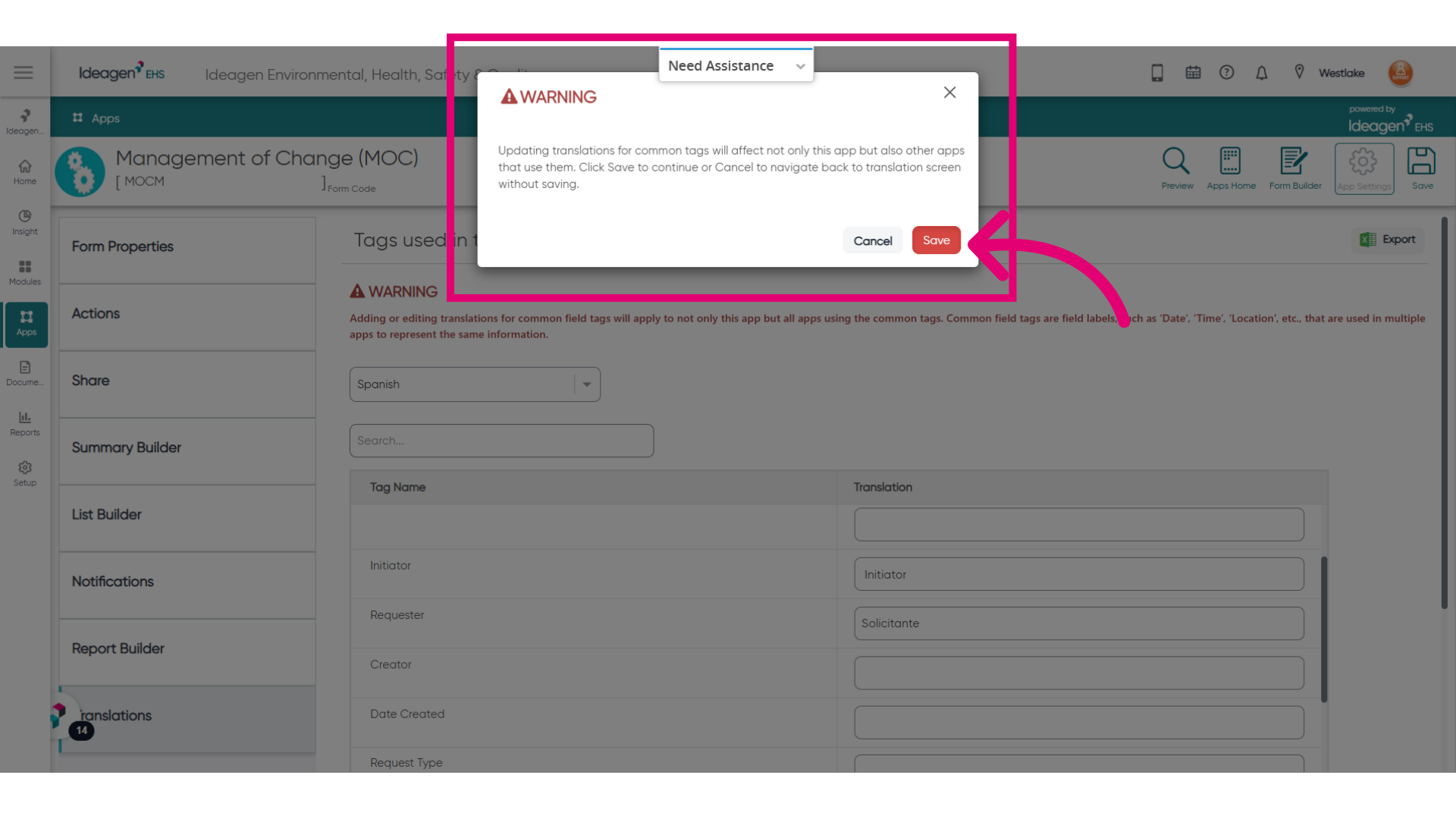
- Click Save/Cancel.
Note: A warning message appears which indicates that adding or editing translations for common field tags will apply to not only this app but all apps using the common tags. Common field tags are field labels, such as ‘Date’, ‘Time’, ‘Location’, etc., that are used in multiple apps to represent the same information Click Save to continue or Cancel to navigate back to translation screen without saving.
-
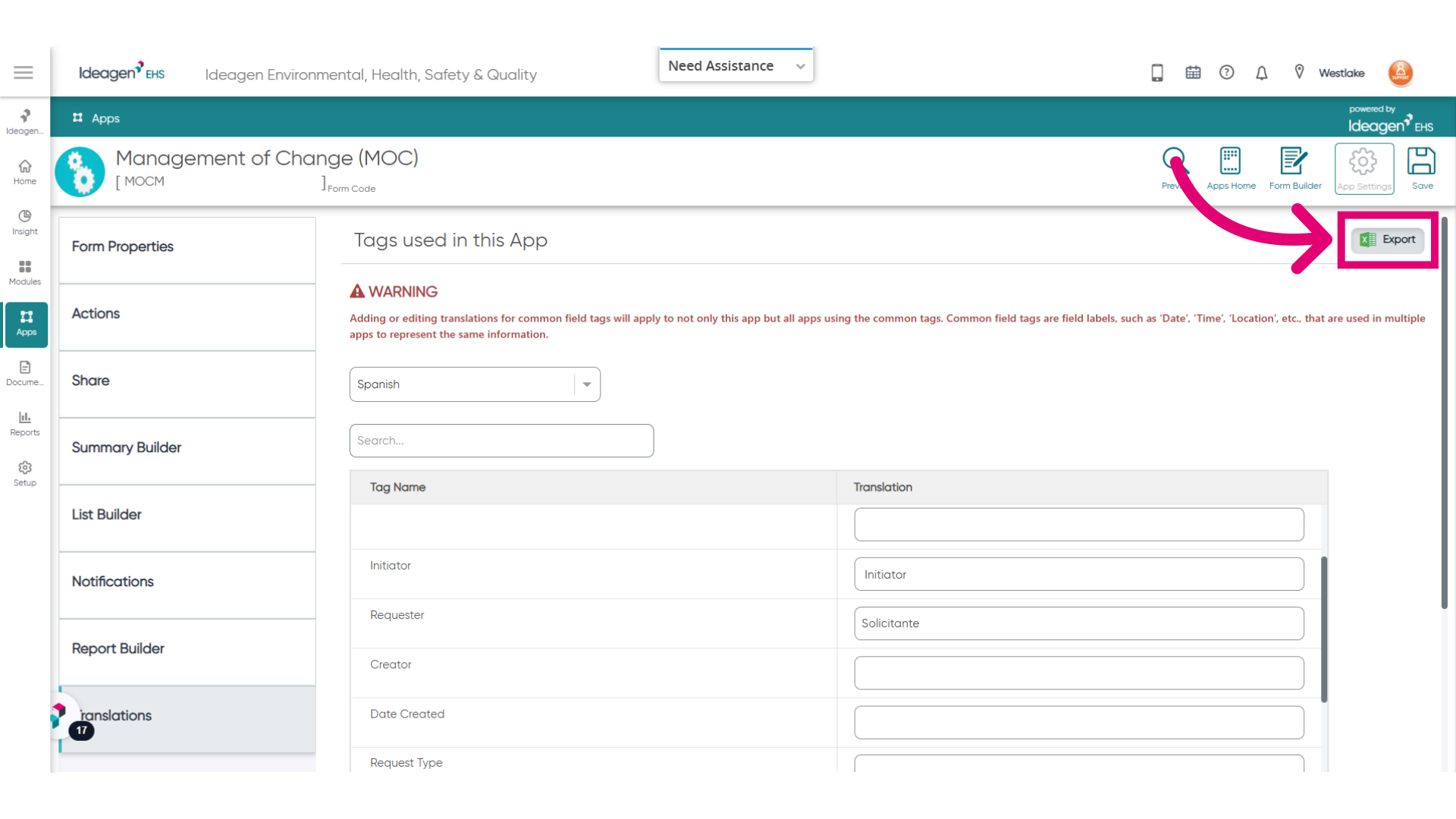
Additionally, you can also export the tag names and the translations for the selected language using excel export.