


New article
Recently updated
26.4 Incident Management release notes

Who is this article for?
System administrators and supervisors who want to learn about the Incident Management release.
New permissions have been introduced for viewing, editing, and downloading.
The U1000 feature enables German customers to capture, review and generate the official statutory accident report (Unfallanzeige / U 1000) directly from the incident workflow for each injured employee.
Understanding the U1000 feature
German Statutory Accident Report U1000 (Unfallanzeige)
Previously, German customers couldn't capture or submit the statutory accident report within the incident workflow. The Employee record only had a free-text Legal Entity field, lacking structured DGUV membership and UV-Träger details linked to locations.
The updated system now offers a full workflow to capture Legal Entity info, link it to employees, and generate official U1000 accident reports. This feature is Germany-specific and controlled by the private Enable U1000 setting; all related screens, fields, and permissions are hidden if disabled.
Setting up Legal Entities
To configure Legal Entity information:
- Go to Setup.
- Select Enterprise Setup.
- Access the new Legal Entity lookup.
- Enter the company name and address.
- Add the DGUV membership number.
- Specify the UV-Träger recipient.
- Enter the authorised signatory details.
- Add the works council representative information.
- Enter the contact phone number.
- Tie the Legal Entity to a single location.
Note: A location can host multiple Legal Entities, but each Legal Entity is tied to a single location.
Configuring employee Legal Entity assignments
The Employee Profile includes a new single-select Legal Entity Name field that lists only the entities tied to the employee's location. When enabled, it replaces the existing free-text field.
To assign a Legal Entity to an employee:
- Open the Employee Profile.
- Locate the Legal Entity Name field.
- Select the appropriate Legal Entity from the dropdown list.
Important: The Legal Entity Name field is mandatory for employees whose location country is Germany. The field is supported by the inbound HRMS feed.
Accessing the U1000 report
To access the U1000 report for an injured employee:
- Open the Incident Summary.
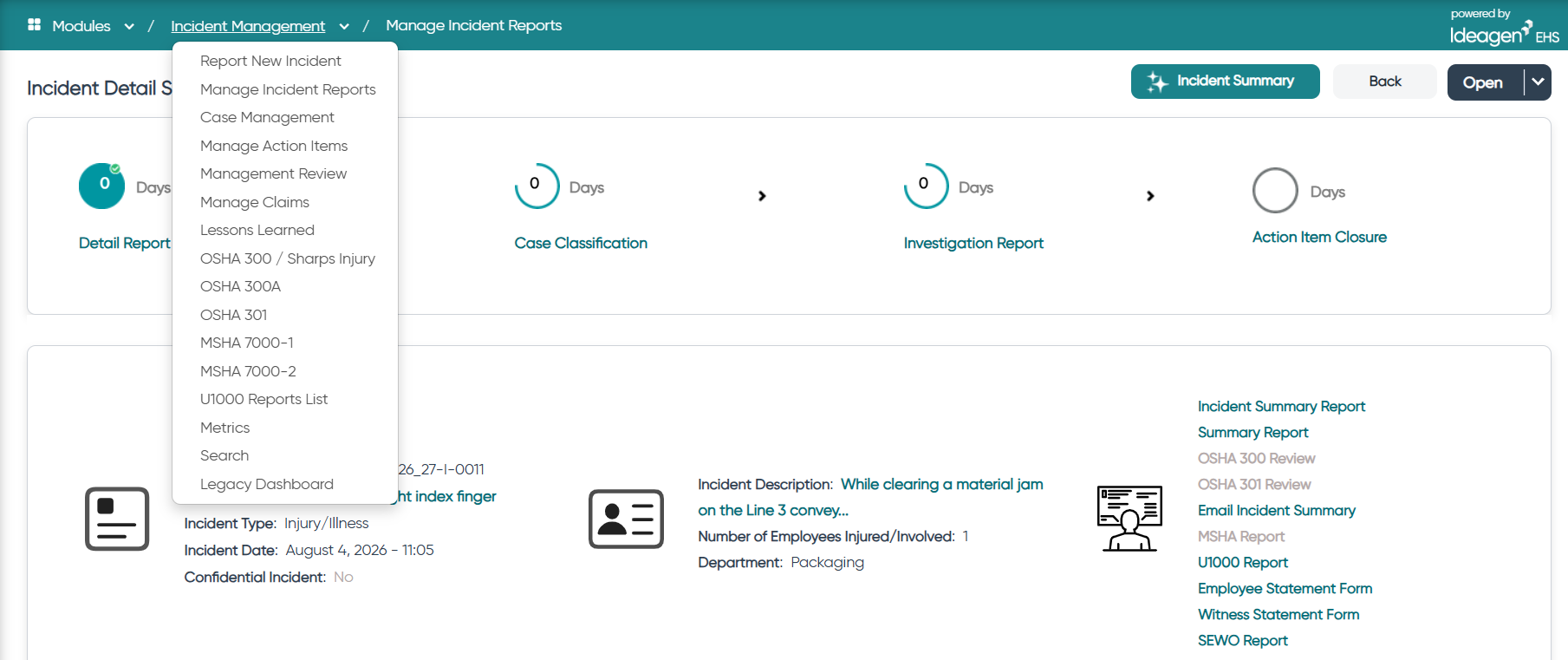
- Locate the Report U1000 link for the injured employee.
The Report U1000 link appears in the following locations:
- In the summary report links for a single injury
- In each employee's Reports dropdown for multiple injuries
Note: The Report U1000 link becomes available once the Detailed Report is complete and can run alongside Investigation, Case or Claim.
Completing the U1000 details screen
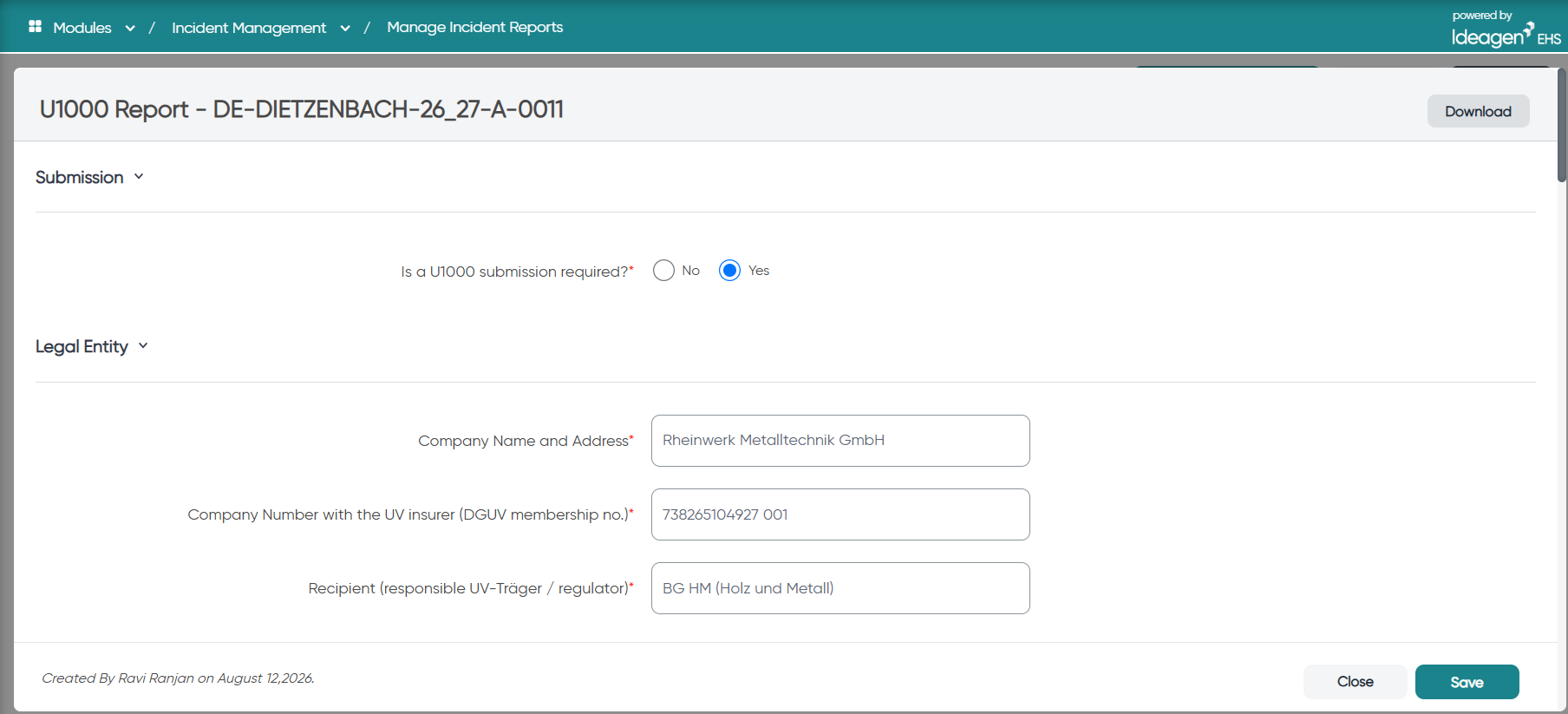
The dedicated U1000 details screen pre-fills Legal Entity, employee and incident data. Legal Entity-sourced fields are read-only unless blank, and the auto-derived Legal Entity cannot be changed by the reporter.
To complete the U1000 details:
- Review the pre-filled Legal Entity information.
- Review the pre-filled employee data.
- Review the pre-filled incident information.
- Enter the remaining required fields.
- Save your changes.
The details screen displays in your logged-in language (German or English), including all field labels and option values. Field Level Security is applied to employee PII fields, consistent with the OSHA screens, and every create and update is captured in the activity log.
Downloading the official U1000 PDF
To download the official German U 1000 (Unfallanzeige, 0524) PDF:
- Open the U1000 details screen.
- Click the download button in the top-right corner.
Note: The PDF always renders in the official German layout and labels regardless of the screen's display language.
Managing U1000 reports using the List Screen
The U1000 List Screen provides predefined views to drive the supervisor determination and EHS/HR review workflow.
Available predefined views include:
- All Incidents – Current Year
- Supervisor View
- EHS/HR Reviewer View
Understanding U1000 permissions
Separate permissions govern U1000 access and are listed in the Regulatory section after the existing OSHA/MSHA permissions.
The following permissions are available:
- View U1000
- Edit U1000
- Download Report U1000