


New article
Recently updated
26.4 Occupational Health release notes

Who is this article for?
Supervisors who want to learn about the new Occupational Health release.
No elevated permissions are required.
The following article explains the new features in the Occupational health release, including the bulk printing feature and accessing and downloading requisition files.
Understanding the bulk printing feature
For Blood Lead Level (BLL) lab integration, requisition PDFs returned by the lab are stored on each encounter's Attachments tab. Previously, you had to download them one encounter at a time, which was time-consuming when scheduling 100 or more encounters a day. The bulk printing feature allows you to download lab requisition PDFs for many encounters simultaneously as a single zip file.
Note: This capability is delivered to a specific customer via a data script. The system view can be enabled on need basis.
Accessing the encounters with requisition files
To access encounters that have requisition files:
- Go to the Manage Encounter Types (Encounter Type List) screen.
- Select the Encounters with Requisition File – Past 7 Days system view.
This view displays BLL encounters that have been approved and sent to the lab within the past seven days.
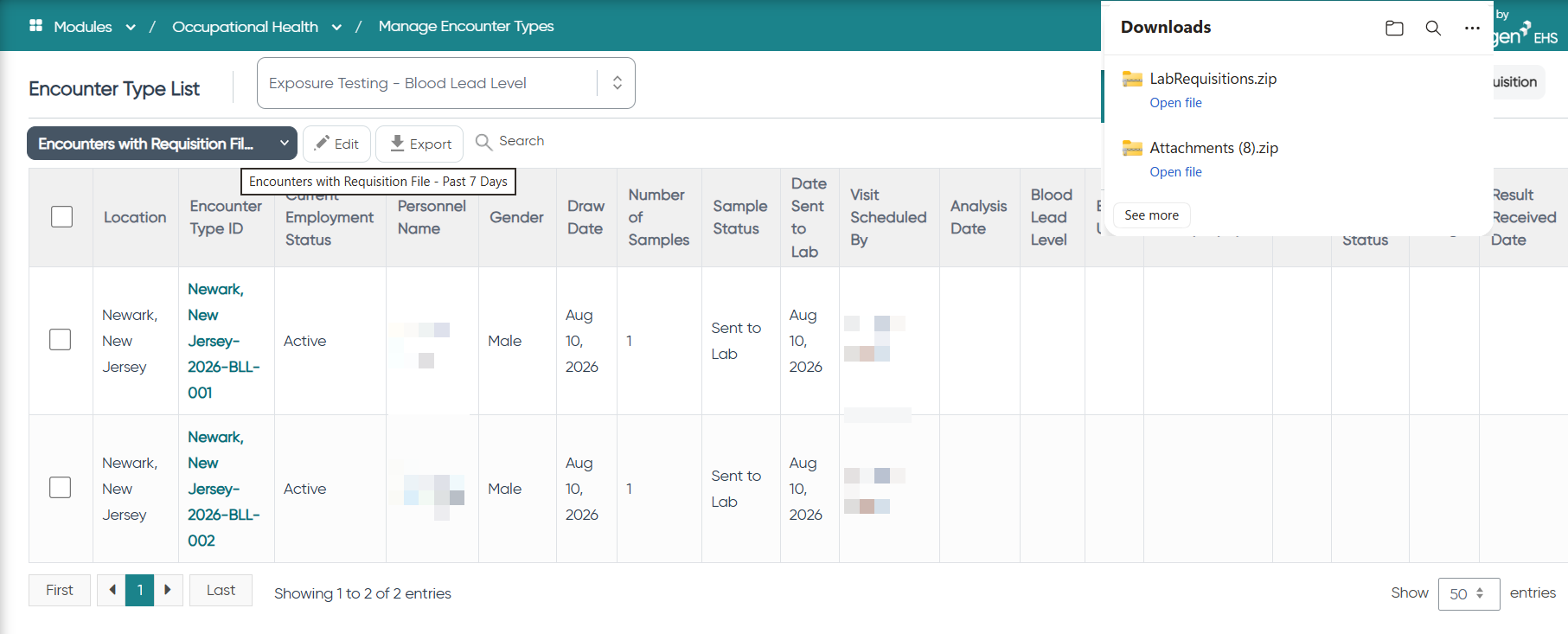
Downloading lab requisitions in bulk
To download multiple lab requisitions:
- Select the encounters you want to download by ticking the checkboxes next to each encounter, or click Select All to select all encounters in the view.
- Click the Lab Requisitions button.
All requisition PDFs from the selected encounters download as a single zip file.
Note: The Lab Requisitions button appears only when the Encounters with Requisition File system view is selected. It is hidden on all other views.