


New article
Recently updated
26.5 Risk Assessment release notes

Who is this article for?
Administrators and Users who want to learn about the new Risk Assessment release.
No special access or permissions are required.
Features
Configuring which approval step an Assessment is locked
Previously, a Risk Assessment is locked only at the last workflow step, once approved. Until then, reviewers can edit an assessment after it is submitted without anyone seeing it, which is a governance risk.
This enhancement allows customers to lock an assessment at the workflow step they choose, so submitted assessments cannot be edited silently.
A new private setting, Configure Assessment Lock based on Workflow Status, defines the workflow step at which a Risk Assessment is locked. The available steps are OnSubmission, OnReview, OnApproval and OnEvaluation, and the setting is configured through a TA request.
- If configured to lock on submission, the assessment locks as soon as a user selects Submit for Review or Submit for Evaluate.
- A locked assessment is read-only for everyone, including reviewers.
- A locked assessment becomes editable again only when it is rejected in the workflow. Any other change requires rejection through the defined workflow.
- If the setting is not configured, the assessment still locks at the final approval step (existing behaviour). All current lock and unlock behaviour is unchanged.
Adding the Assessments Awaiting Approval widget on your home page
Previously, there was no way to see from the home page how many risk assessments were in the approval process. This made it difficult for users to quickly see and act on assessments awaiting approval.
You can now add an Assessments Awaiting Approval widget from the Add Widget list on the dashboard, at location only. The widget is visible only to users with Risk Assessment module permission, and saved dashboards do not show it to users without this permission.
The widget displays a count of assessments in the approval process for the navigated location, with one bar each for Submitted for Review, Submitted for Evaluation and Submitted for Approval. Draft, Final and Inactive assessments are excluded.
A status with no matching assessments still shows a bar with a count of 0, and the bars add up to the total shown for the current selection.
An Approval Scope filter lets you choose between My Approval (default) and All Assessments. My Approval counts only assessments where the current approval step is owned by the logged-in user.
A Due Date filter lets you choose between Overdue, Today, Current Week (default), Current Month or Next 30 Days.
Clicking a bar opens the assessment list for that approval status, with the same Approval Scope and Due Date selections applied.
Save Preferences keeps your filter selections and reapplies them at your next login. Remove Widget removes the widget without affecting other widgets.
When nothing matches the selection, the widget shows a count of 0 or "No data available".
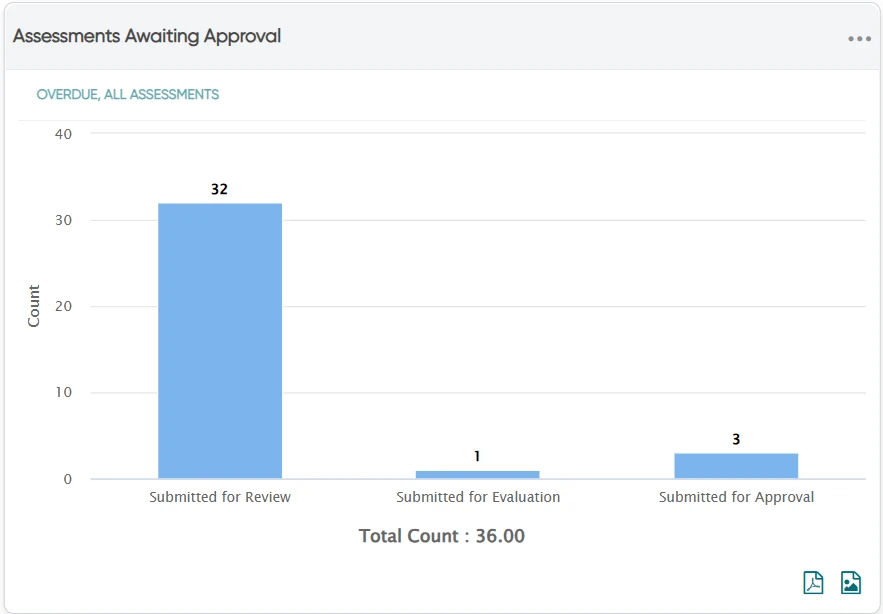
Adding the Assessments In Draft widget on your home page
Previously, there was no way to see from the home page how many Risk Assessments are sitting in draft.
A new "Assessments In Draft" widget is now available from the Add Widget list on the dashboard, at location only. It is visible only to users with Risk Assessment module permission, and saved dashboards do not show it to users without it.
The widget shows a count of draft assessments for the navigated location, with one bar for each value of the selected Group By field. A value with no draft assessments still shows a bar with a count of 0, and the bars add up to the total shown.
Group By: Assessed By (default), Department, Work Area or Job Classification. Field names and values appear as configured for in application, and a field that is not configured is not offered.
Created Date filter: >30 Days (default), >60 Days, >90 Days, >6 Months or >1 Year. It counts drafts created before the selected threshold.
The two filters work together, and the chart and total refresh to reflect both.
Clicking a bar opens the assessment list for that Group By value, filtered to draft assessments with the same Created Date selection.
Save Preferences keeps the filter selections and reapplies them at next login. Remove Widget removes the widget without affecting other widgets.
When nothing matches the selection, the widget shows a count of 0 or "No data available".
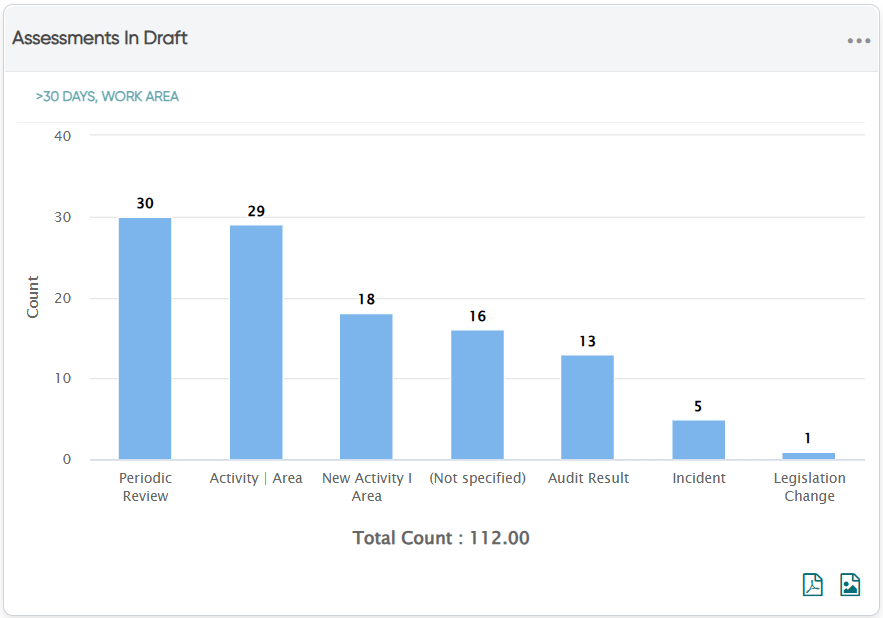
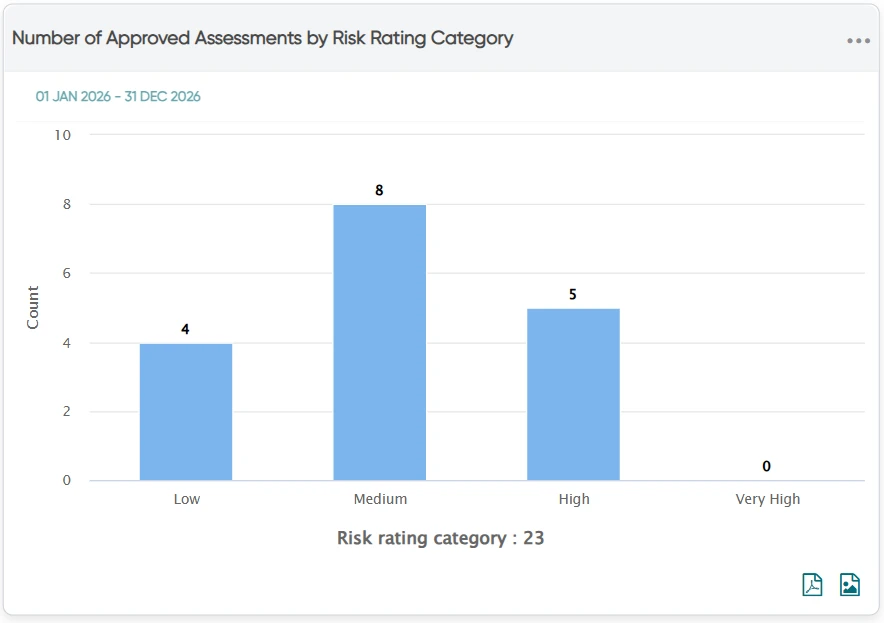
Adding the Number of Approved Assessments by Risk Rating Category widget on your home page
Previously, there was no way to see from the home page how approved Risk Assessments are spread across risk levels.
A new "Number of Approved Assessments by Risk Rating Category" widget is now available from the Add Widget list on the dashboard, at both location and level.
It is visible only to users with Risk Assessment module permission, and saved dashboards do not show it to users without it.
The widget counts approved assessments only, for the navigated location and level. Each assessment is counted once, in the highest residual risk rating across its hazards.
Assessments with no residual risk rating are not counted in any category, so the bars can add up to less than the total shown below the chart.
There is one bar for each risk rating category, in risk severity order, with the count shown on or above each bar. The total approved count for the current selection is shown below the chart and updates when a filter is applied.
A Period filter is applied to the Assessment Approved Date: Last 30 days (default), Last 60 days, Last 90 days, Calendar Year, Fiscal Year or Custom Date Range.
For a Custom Date Range, users pick a From and To date, and the chart refreshes once both are set. A range longer than 2 years, a To Date earlier than the From Date, or a future date shows a validation message and the chart does not refresh.
Clicking a bar or the chart does not navigate anywhere.
Save Preferences keeps the Period selection, including any Custom Date Range, and reapplies it at next login. Remove Widget removes the widget without affecting other widgets.
When no approved assessments match the period, the widget shows "No data available".
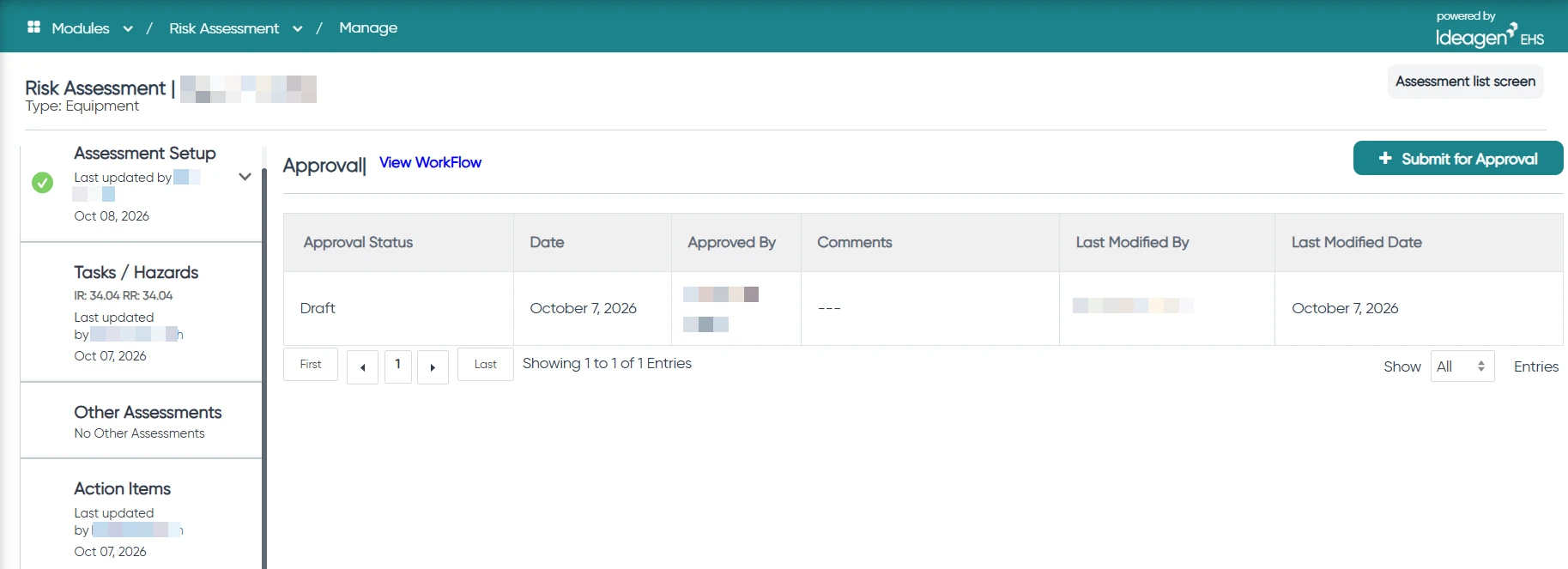
Setting the approval-screen button to show the actual workflow status name
Previously, on the Approval screen, the button that moves an assessment to the next workflow step was labelled "Add", which was generic and misleading.
The button now shows the workflow status or transition name configured for the current step (for example, "Approve"). The label changes as the assessment moves through steps, making its purpose clear. Clicking the button progresses the assessment exactly as before.
Displaying the owners of current approval workflow steps for an assessment on the list screen
Previously, the Manage Risk Assessment screen did not show who an assessment is currently with. Users have to open each record to find out.
Now you can show at a glance who currently owns each assessment in the approval workflow:
- A new Current Step Owner(s) column lists all owners of the approval step currently due, separated by commas.
- The column updates as the assessment moves to the next step, regardless of the number or naming of steps in your workflow.
- Assessments not awaiting approval (not submitted/draft, approved or rejected) show "NA".
- The column is available in column selection and is included in the default system views.
- List performance is not affected, including with large volumes, filtering, sorting and pagination.
Easily identify linked Other Assessment records
Previously, the Other Assessment list is a table with only generic link information (Assessment Type/Form Name, ID, Linked Date, Linked By) and no app-specific columns. As a result, users cannot easily tell which COSHH assessment is which.
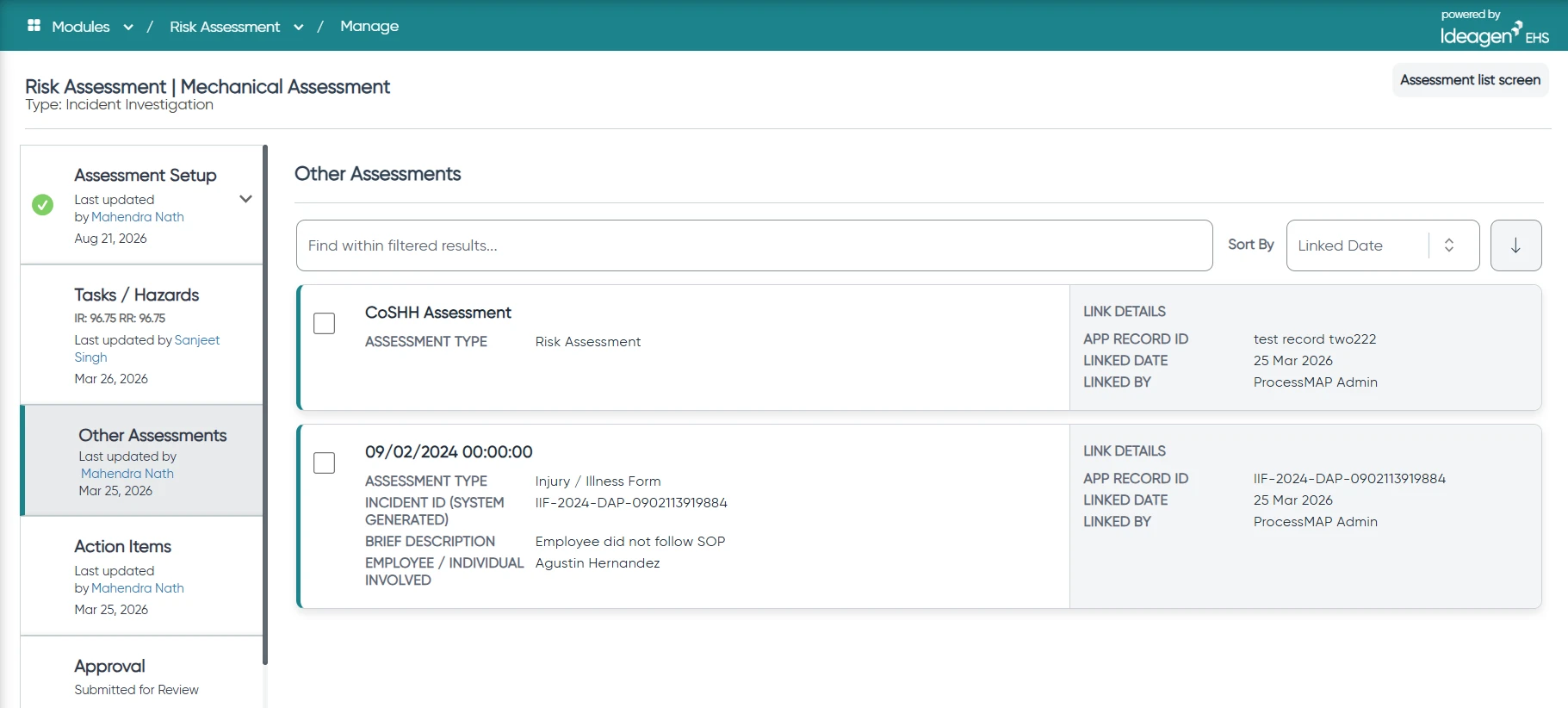
Linked records on the Other Assessment Summary screen now appear as cards instead of table rows.
Each card has two columns. The left column shows the top five columns from that app's List view configuration, in the configured order, with the record title prominent. The right column shows App Record ID, Linked Date and Linked By.
An app with fewer than five configured columns shows only the ones configured.
Inline search, sorting and pagination still work. Deleted records and apps still appear with the existing "deleted" message, and records linked before an app was removed from Module Setup are retained.
Copying and linking Other Assessment records when creating a new version or copy
Previously, when a user created a new version of a risk assessment, records in the Other Assessment tab were not carried over, unlike other sections.
Now, when a user creates a new version or a copy of a risk assessment, the system copies every record in the Other Assessment tab into its respective App and links the copies to the new assessment.
- Editing a copied record does not affect the original, and changes to the original do not affect the copy.
- Copies are created even if the user does not have create permission in those Apps.
- Attachments and linked action items are not copied, consistent with existing App record copy behaviour.
- Deleting a risk assessment from the Manage Risk Assessments list removes only the links; the App records remain in their Apps.
Note
each copied record may trigger notifications, DataSync and other scheduled actions configured on its App. An assessment with many linked records will trigger these for every copy.