New article
Recently updated
26.5 Incident Management release notes

Who is this article for?
Administrators and Users who want to learn about the Incident Management release.
No special access or permissions are required.
Features
Editing an incident's type
This feature allows users to correct an incident's type after creation and retain relevant data as per the remaining or new incident type without re-entering the incident.
Details of enhancement:
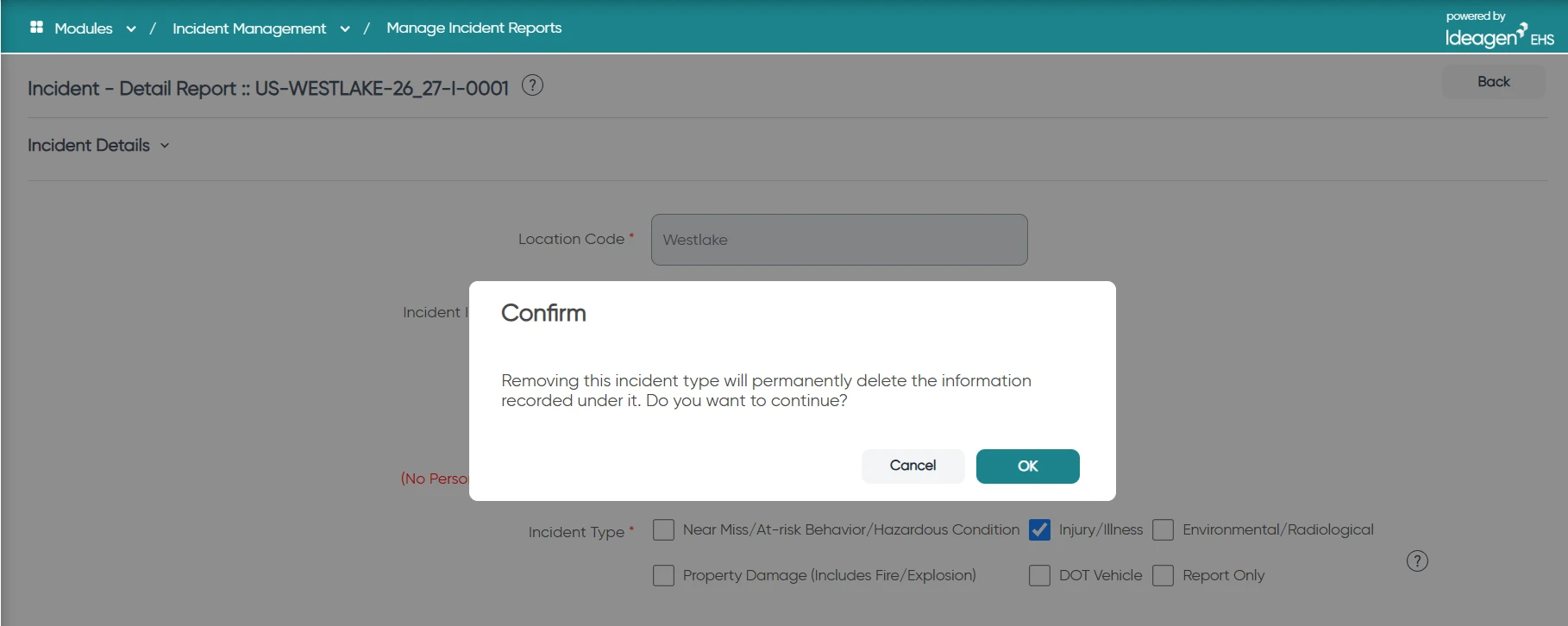
- When Enable Incident Type Change is set to Yes, permitted users can add, remove or swap incident types on an existing incident. When it is set to No, all incident screens behave as they do today.
- For Injury/Illness, Environmental, Property Damage and Vehicle, checking a type adds it and unchecking removes it.
- An incident must always keep at least one type. Unchecking the only remaining type is blocked, with an alert asking the user to select the new type first.
- Near Miss and General Liability never coexist with another type. Selecting a different type replaces the existing one in a single action after confirmation. Unchecking is not offered for these types.
- The type can be changed at any incident status, except when closed.
- Permissions: Access follows the user's Incident Edit permission. Users without it cannot change the type.
- For locked incidents:
- Users with only the Incident Edit permission cannot change the type.
- Users with the Edit Locked Incident permission can change the type in place. The incident stays locked and its status does not change.
- Where Enable Reopen status for Locked Incidents is on, users with the Reopen Locked Incident permission can reopen the incident, which unlocks it, and then change the type.
- Removing a type also deletes the data specific to that type, and it is no longer shown:
- Incident-level data (root cause, lessons learned, CAPA) is kept as long as at least one type remains. Cost data is not changed.
- When a Near Miss is swapped to another type, the confirmation states that Near Miss investigation work will be lost. Other Near Miss-specific information is also deleted.
- Every change is recorded in the Activity Log under Updated, in this format: Incident Type Changed | Old: <list of incident types> | New: <list of incident types>
- Dashboards, counts, reports, permissions and routing reflect the active types only.
Mobile support for changing incident type will be available in a future version.
Incident reopen access governed by a separate permission from Lock/Close
Previously, one permission, "Change Incident Status", controlled both closing/locking an incident and reopening a locked incident. Reopening carried a different risk than routine closing, but the two cannot be governed separately.
This feature allows customers restrict reopening to designated management roles without changing behaviour for anyone else.
Details of enhancement:
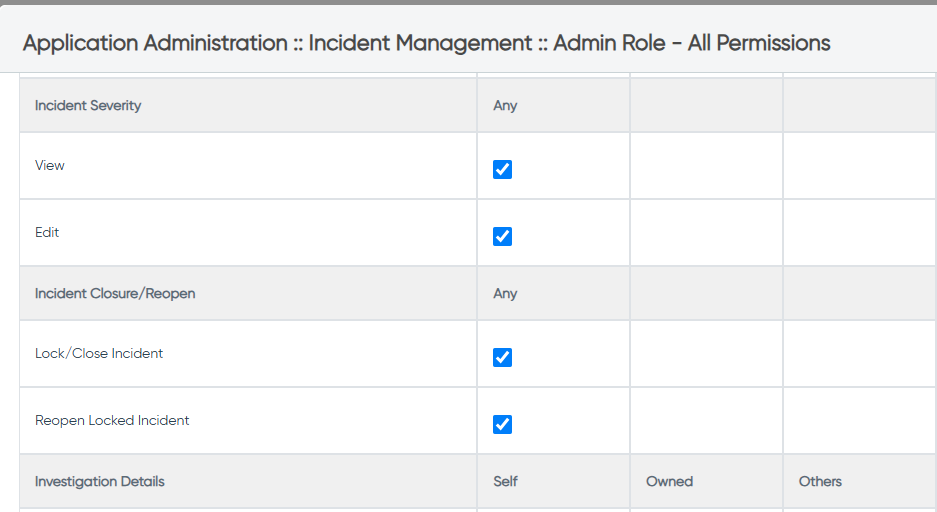
The "Change Incident Status" permission is renamed "Lock/Close Incident". It still controls closing and locking, and no role assignments change.
A new permission, "Reopen Locked Incident", appears immediately after Lock/Close Incident for all incident types. It is shown only when the existing Enable Incident Locking / Enable Reopen status for Locked Incidents settings are on.
The Reopen option on a locked incident is available only to users whose role has Reopen Locked Incident. Users with only Lock/Close Incident can still close and lock incidents but cannot reopen them.
At upgrade, Reopen Locked Incident is assigned once to every role that already has Lock/Close Incident, so behaviour is unchanged. After that, the two permissions are fully independent, and each must be set explicitly.
Mobile Pro does not offer Close/Lock or Reopen, so the new permission has no effect there. A reopen done on Web is reflected on Mobile at the next sync. Editing a locked incident on Mobile is still governed by Edit Locked Incident.
Migration Note: To restrict reopening after upgrade, remove Reopen Locked Incident from the roles that should not have it.
Filter incident lists by selecting Departments
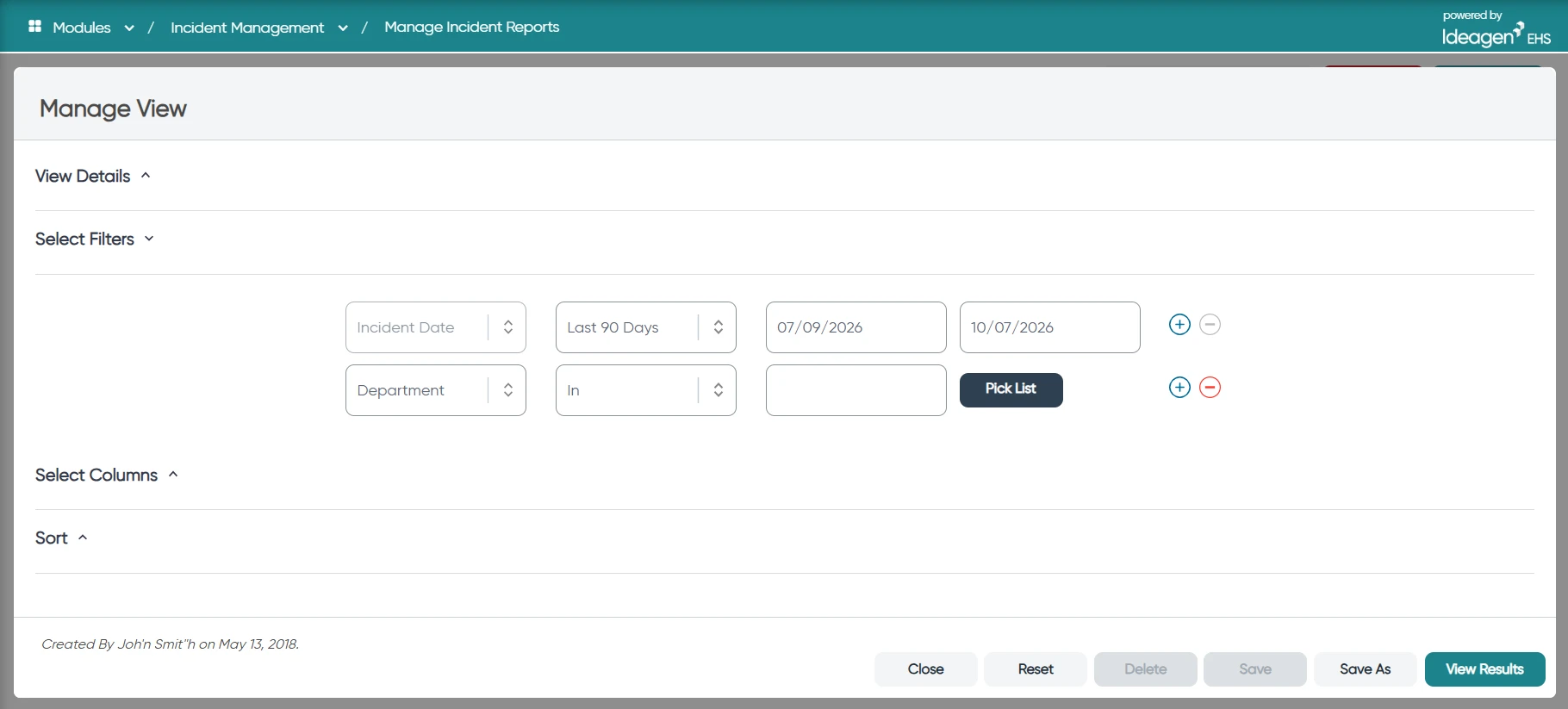
Previously, the Department filter on incident list screens was free text, which could lead to typos, partial matches and inconsistent results.
The Department filter is now a multi-select lookup of the configured Departments available to the user, letting you filter incidents by valid Department values accurately.
You can select several Departments at once, and the list will show incidents matching any of them.
The filter applies, resets, paginates and combines with other list filters in the same way as other lookup filters.
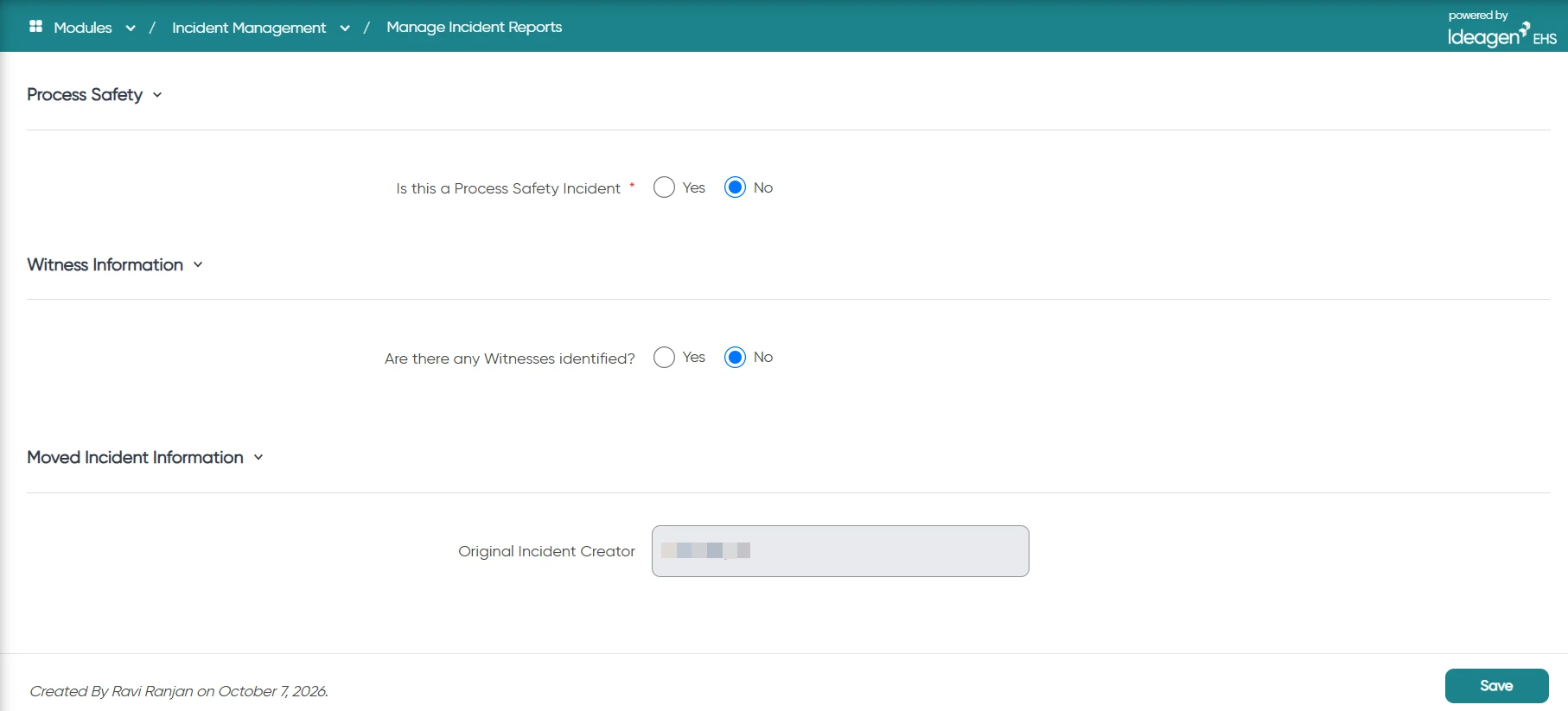
Identify who originally reported an incident that was moved to another location
Previously, when an incident was moved to a new location, the name of the user who originally reported it was no longer visible, making it difficult to trace who first created the incident.
You can now see the original reporter on moved incidents, improving traceability:
- A new read-only field, Original Incident Creator, on the Incident Detail screen shows the name of the user who first created the incident.
- The field appears only for incidents that have been moved. Moving an incident still requires the existing Move Incident permission.
- The value does not change if the incident is moved again.
- Original Incident Creator is available as an optional column in the Manage list column selection.
Distinct report status when saving an incident
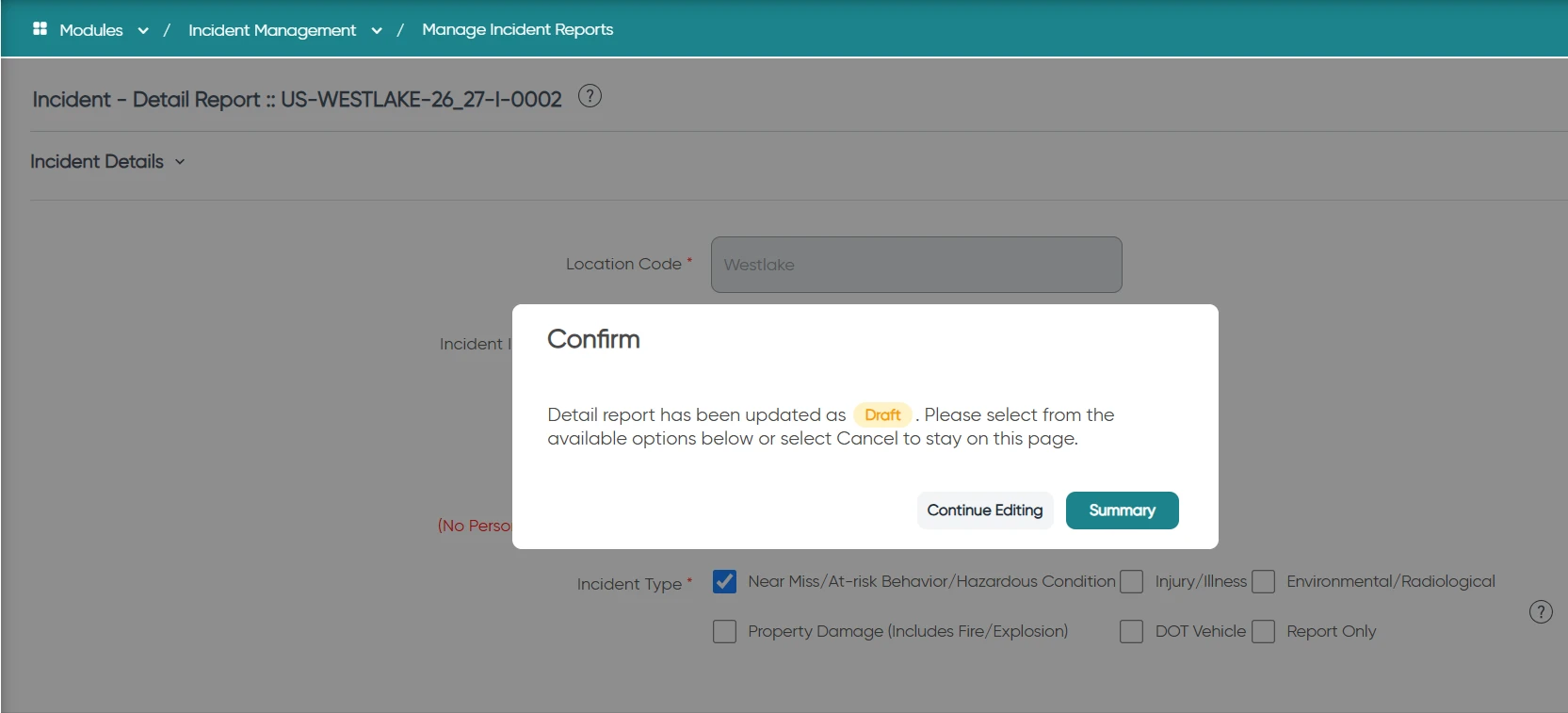
Previously, the save confirmation displayed the Detail Report status (Complete, Draft or Incomplete) in the middle of a sentence, where it was easy to overlook. As a result, reports were sometimes left incomplete without users realising, so they went unactioned or unreported.
To make the report status impossible to miss when saving, the status now appears in bold and colour-coded: green for Complete, amber for Draft and red for Incomplete, along with a matching background colour.
The Cancel button has been renamed Continue Editing. It still closes the dialog and keeps the user on the same page with no data changes.